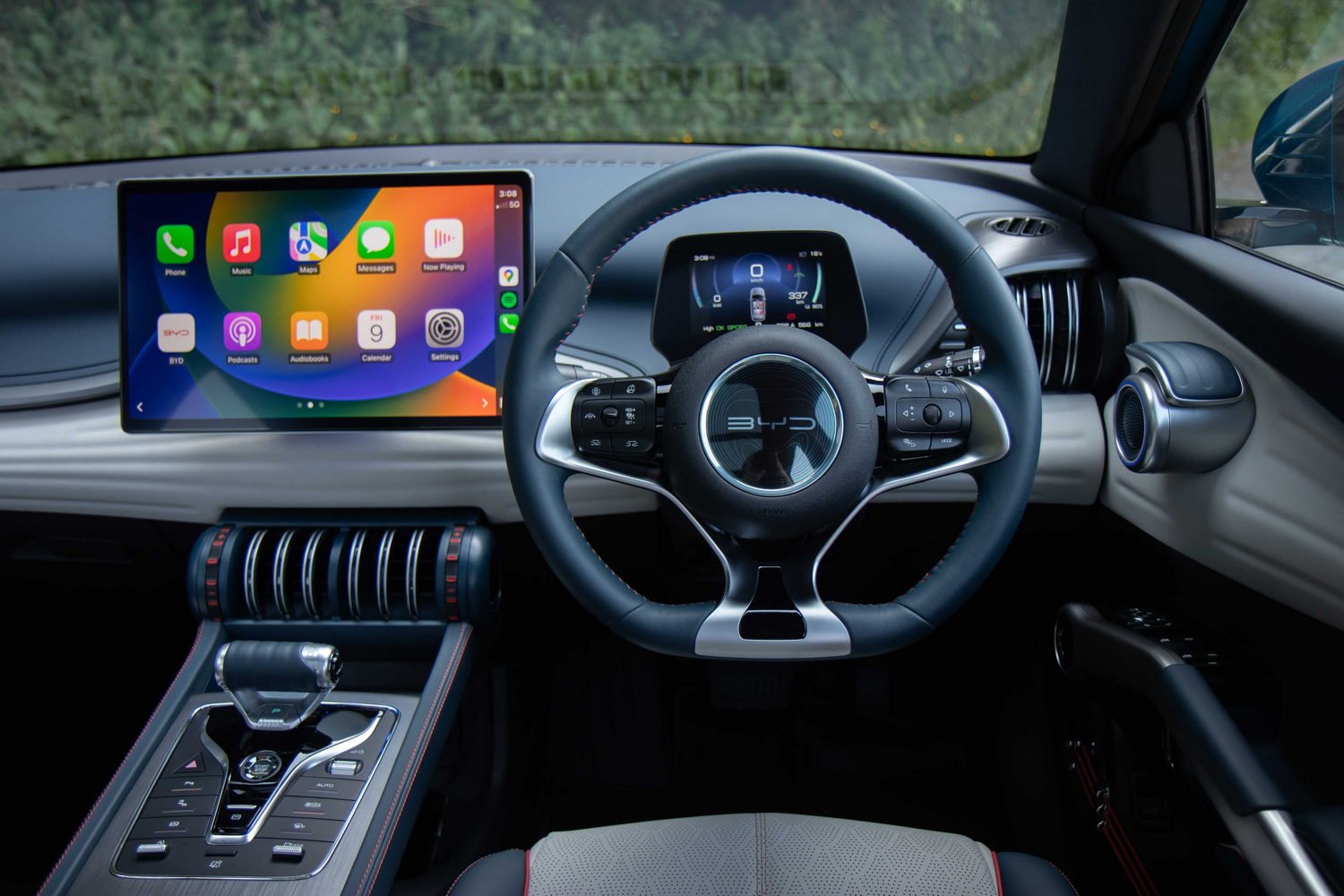
BYD Atto 3 Apple CarPlay: Setup Guide & Usage Tips
For BYD Atto 3 owners, wireless Apple CarPlay is one of the most exciting features your car can offer. Thanks to the OTA 1.8 software update released in mid-2024, the vast majority of Australian models now support it natively — with no additional hardware needed. Enjoy Siri voice commands, real-time Apple Maps navigation, and your favourite music or podcasts, all completely hands-free. This guide covers everything: compatibility, setup, rotating screen tips, troubleshooting, and pro tricks.
BYD Atto 3 Apple CarPlay Compatibility Overview
Once OTA 1.8 is installed, the Atto 3 delivers a stable, reliable native wireless CarPlay experience. Almost all models sold in Australia since late 2023 — both Standard Range and Extended Range — are supported after the update is complete.
Supported Models
All Australian-spec Atto 3 models running OTA version 1.8 or higher.
Screen Display Mode
CarPlay automatically switches the rotatable screen to landscape mode. Portrait mode is currently not supported.
Wired vs. Wireless
After OTA 1.8, the connection is fully wireless via Bluetooth + the vehicle’s built-in Wi-Fi hotspot. No cable needed.
Practical Benefits
Real-time traffic updates, hands-free Siri control, and automatic reconnection on every subsequent drive.
Which Atto 3 Models Support This Feature?
Essentially all models updated to OTA 1.8 or later. If your Atto 3 was purchased in Australia after late 2023, it almost certainly qualifies — just confirm the software version first.
How to Confirm CarPlay Is Available After the OTA Update
From the infotainment screen, go to Settings → System → Connected Devices and look for the CarPlay icon. If it’s not there, check for any pending system updates and install them.
Preparation: Pre-Setup Checklist
Before starting the setup, take a couple of minutes to complete these checks. We recommend screenshotting this list for quick reference later!
📋 5-Step Quick Checklist
- Update your iPhone to iOS 16 or a later version.
- Confirm your BYD Atto 3 is running OTA version 1.8 or higher.
- Enable both Bluetooth and Wi-Fi on your iPhone. If you encounter connection issues, clear all previous BYD Bluetooth pairing records first.
- For best signal stability, keep your iPhone on or near the centre console during pairing.
- Complete all setup steps while parked safely — never attempt this while driving.
Have you ever tried to connect a device while merging into traffic? Please don’t. Pull over, complete the setup, and only then resume your journey. A few minutes parked saves a lot of stress.
BYD Atto 3 Wireless Apple CarPlay: Step-by-Step Setup Guide
With proper preparation, this process is smooth and fast — and after the first pairing, it becomes almost fully automatic.
Access CarPlay Mode via the Vehicle Screen
Start your vehicle and wait for the screen to rotate into position. Tap the Apple CarPlay icon on the home screen, or find the option under Connected Devices in the settings menu.
Bluetooth Pairing and Authorization on Your iPhone
On your iPhone, go to Settings → Bluetooth and select your BYD vehicle. Tap the authorization pop-up promptly when it appears. Then confirm the connection on your vehicle’s touchscreen to complete pairing.
Customize Settings After the First Successful Connection
Personalize Siri language, notification preferences, and audio output to suit your routine. After two or three drives, CarPlay will connect automatically every time you enter the vehicle.
Emma, an Atto 3 owner from Adelaide, completed the full setup on her 2024 Extended Range model in under five minutes using these exact steps. Once paired, it connected automatically on every drive afterwards.
Exclusive Optimization Tips for the Rotating Screen
The Atto 3’s rotating central touchscreen is one of its most distinctive design features — but getting a flawless CarPlay experience out of it requires a couple of subtle adjustments.
CarPlay operates exclusively in landscape (horizontal) mode. Whenever you launch it, the screen rotates automatically to ensure the interface stays clean, organized, and easy to read at a glance.
Resolving Interface Display Issues with the Rotating Screen
If icons appear excessively large or the layout looks off, lock the screen in landscape mode while CarPlay is active. Avoid manually rotating the screen while driving — this can trigger display glitches and layout issues.
Hidden Setting for Enhanced Performance
Keep an eye out for OTA software updates and install them promptly. Newer system versions regularly include optimizations that improve screen rotation speed and significantly reduce lag or stuttering during CarPlay use.
Common Troubleshooting and Quick Fixes
Despite factory support, minor glitches can occasionally occur. Here are the most effective, proven solutions from Atto 3 owners:
❌ CarPlay Icon Not Appearing or Connection Failure
Restart the entire infotainment system: press and hold the volume knob (located next to the gear selector) for 10 seconds. This simple restart trick has resolved the issue for the majority of owners who’ve tried it.
⚠️ Lag, Sluggishness, or Frequent Disconnections
Close background apps on your iPhone, then check the vehicle’s Wi-Fi hotspot settings. A very common cause is the hotspot getting stuck on the 5 GHz band — switch it temporarily to 2.4 GHz in the vehicle settings, then reconnect.
🔇 No Sound or Abnormal Navigation Audio
Check the audio source settings within the CarPlay interface. In most cases, simply toggling Bluetooth off and back on, or restarting your iPhone, is all it takes to resolve the issue instantly.
🚀 8 Pro Tips to Enhance Your CarPlay Experience in the BYD Atto 3
- Launch Apple Maps for real-time traffic alerts that automatically reroute around congestion.
- Let Siri handle everything — navigation, playlists, and voice commands keep your hands completely on the wheel.
- Switch freely between Apple Music and Spotify without ever touching the screen.
- Enable auto-connection — after a few drives, CarPlay pairs the moment you start the car.
- Lock the screen in landscape mode during CarPlay to prevent display glitches from accidental rotation.
- Install OTA updates promptly — BYD regularly pushes improvements that directly enhance CarPlay stability and screen transition speed.
- Keep your iPhone charged — wireless CarPlay draws power continuously. A wireless charging pad on the centre console is a smart addition.
- Clear old Bluetooth pairings if connection issues persist — a fresh pairing almost always solves recurring problems immediately.
Frequently Asked Questions
Q: Does the BYD Atto 3 support wired CarPlay?
Older models previously required a wired data cable connection. After the OTA 1.8 update, wireless is the default and fully supported method for all current Australian models.
Q: Which iPhone models are compatible?
Any iPhone running iOS 16 or later. For the best pairing performance and stability, keeping your iPhone on the latest iOS version is always recommended.
Q: Do I need to re-pair every time I get in the car?
No. After the initial setup, CarPlay reconnects automatically whenever you enter the vehicle — typically within a few seconds of starting the engine.
Q: CarPlay is still not showing after the OTA update — what should I do?
Go to Settings → System → Connected Devices and check for the CarPlay icon. If it’s missing, verify the update installed completely and there are no pending updates remaining. Try a full system restart by holding the volume knob for 10 seconds.
Setting up wireless Apple CarPlay on the BYD Atto 3 takes less than five minutes — and once it’s running, the experience is seamless and automatic. Whether you’re navigating peak-hour traffic or enjoying a road trip playlist, CarPlay makes your daily drive smarter, safer, and more connected.