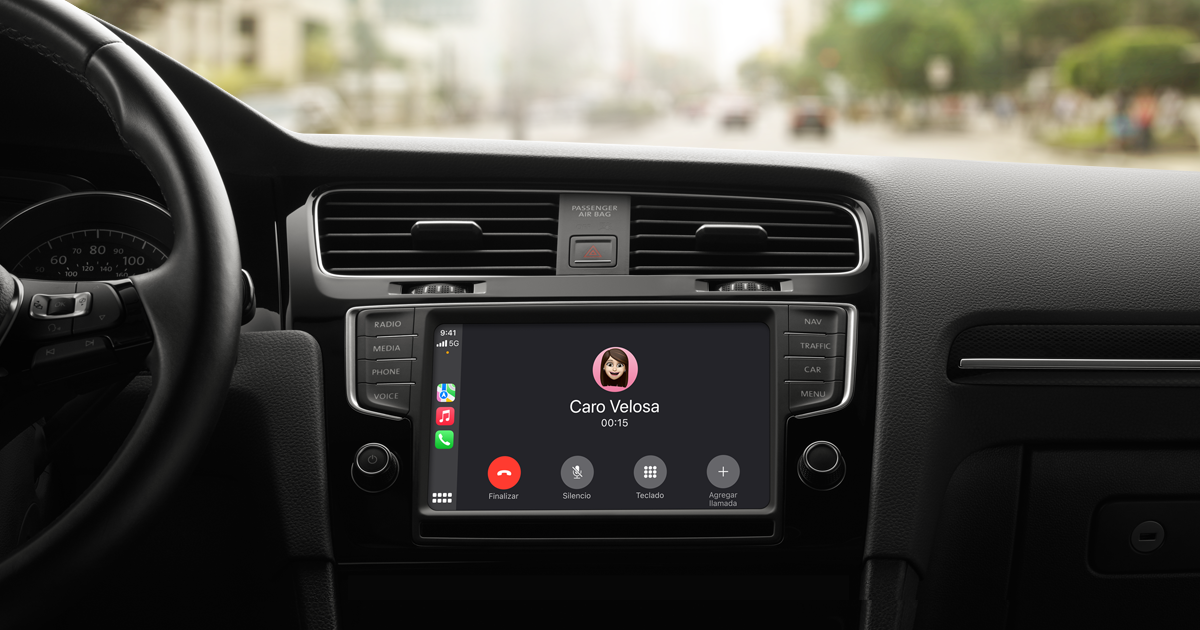
For those of us who use CarPlay, it’s safe to say we are often iPhone users as well, many of us relying on Safari for our browsing needs. While browsing the internet can pose risks when driving, the demand for using Safari on CarPlay persists. This guide offers a solution for those eager to access Safari while staying safe on the road.
Safari is not typically available on CarPlay, but there are effective methods to enable it. We will explore both software and hardware solutions tailored to our iPhone models and iOS versions. Whether we choose app-based solutions or wireless adapters, we can customize our CarPlay experience to include the apps we want.
How to Install Safari Browser on CarPlay
We can install Safari on Apple CarPlay despite Apple’s restrictions by using the WheelPal app. This method requires a jailbreak, as newer iPhone models may not support it. Follow these steps to get started:
Requirements:
- An iPhone compatible with jailbreak
- Internet connection
Installation Steps:
- Download WheelPal:
- Open Safari on your iPhone and visit the CarPlay Hacks website.
- If you are using a PC, look for a QR code and scan it with your iPhone to facilitate the download.
- Install the App:
- After downloading the WheelPal app, follow the instructions to install it on your device. Ensure your iPhone is set up for jailbreak to proceed.
- Access Safari on CarPlay:
- Once installed, you should be able to access Safari directly through your CarPlay interface.
Need Help?
If we are unsure about which method to use, CarPlay Hacks offers various jailbreak and non-jailbreak solutions tailored to our device. Using the Safari Browser is recommended during this installation process for optimal results.
Install Safari Browser on CarPlay for iOS 18 / iOS 17 / iOS 16 / iOS 15 / iOS 14
To set up Safari on CarPlay, we need to jailbreak our devices first. This is possible for iOS 14 through iOS 16, as they can be jailbroken on supported iPhone models. Currently, iOS 18 cannot be jailbroken.
The process begins with installing the WheelPal App. Once we run the app, it checks our compatibility with a PC tool. If compatible, we receive an email detailing the installation steps.
Additionally, Safari offers extensions that enhance our browsing experience. We can manage unwanted content and access the browser for urgent tasks. To add extensions, we navigate to Settings → Safari → Extensions.
Significance of Using the CarPlay Safari Browser App
Having the Safari browser on Apple CarPlay is essential for several reasons. First, Safari is known for being a fast browser, allowing us to quickly access important information while on the go. Its enhanced security features ensure that our data remains safe, giving us peace of mind when using it in our vehicles.
With Safari, we benefit from seamless syncing of our passwords, bookmarks, and browsing history. This means we can locate vital information swiftly, making our driving experience more efficient. The large display of CarPlay makes it easy for us to glance at essential data without distraction.
CarPlay Safari becomes especially valuable in emergency situations. For example, if our car starts making unusual noises, we can quickly search for troubleshooting tips or locate a nearby mechanic. Similarly, while driving, if we need to find the nearest gas station or restaurant, Safari can assist us in getting there without hassle.
For these reasons, we strongly recommend installing the CarPlay Safari browser. Its usefulness for urgent inquiries while we are driving makes it an important tool to have at our fingertips.
How to Add Any App on CarPlay
CarBridge
We can use CarBridge to add various applications to CarPlay easily. This jailbreak tool works with iOS versions up to 16. It allows us to customize our CarPlay experience, enabling us to use apps like Netflix, HBO, and Hulu. Before proceeding, we should ensure our iPhone is compatible with the CarBridge app.
Supported Apps Include:
- YouTube
- Messenger
- Safari
NGXPlay
We also have the option of using NGXPlay, which allows us to access our preferred apps while driving. This jailbreak tweak works with iOS versions 14.8.1 and earlier, providing great flexibility for car enthusiasts looking to enhance their CarPlay setup.
Solutions to Add Apps on Apple CarPlay
There are several effective ways to incorporate any app we want onto Apple CarPlay without needing to jailbreak our iPhones. The best option involves using wireless CarPlay adapters available on the market. Here, we will explore some top solutions that allow us to enjoy more apps while driving.
Carlinkit Wireless Carplay Adapter
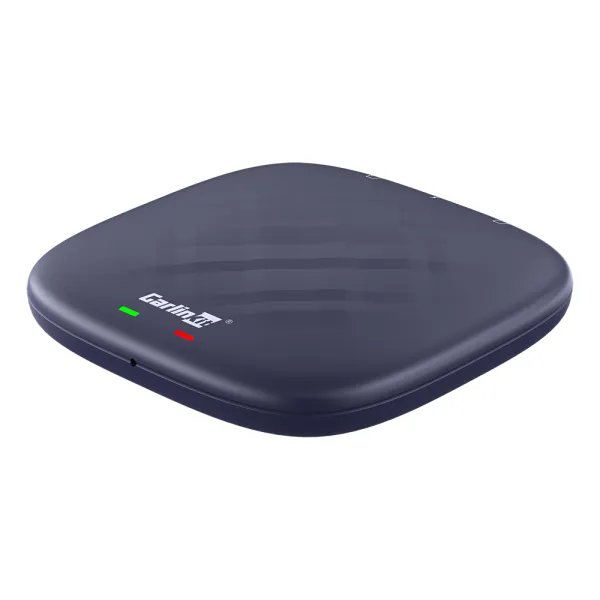
Another great option is the Carlinkit Wireless Carplay Adapter. This adapter supports a wide range of applications, allowing us to use them seamlessly on our car screen. It is compatible with numerous car models, providing a versatile solution.
- Compatible Devices: For iPhones running iOS 10 or newer, up to iOS 18.
- Compatible Cars: Works with car models from 2016 to 2024.
- Prerequisites: Must have built-in CarPlay and Android Auto.
Key Features:
- Supports 4G network connectivity
- Simple installation process with automatic reconnection
- Enables video streaming from platforms like YouTube and Netflix
- Easy to use and portable
MMB AI Box
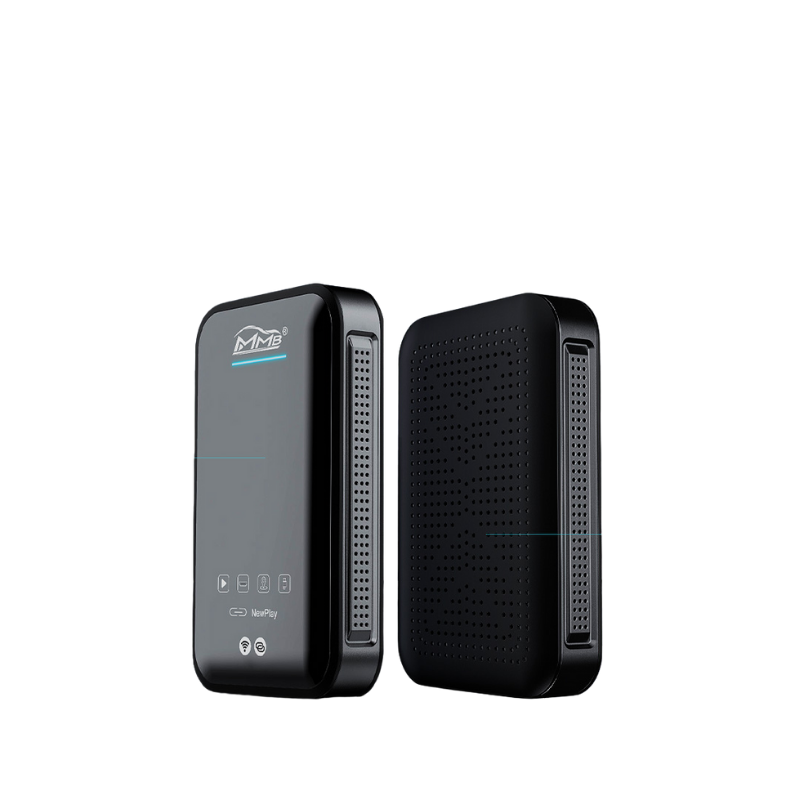
We also have the MMB AI Box, which enhances our CarPlay experience by converting wired connections to wireless. This device is compatible with a vast majority of cars and allows us to enjoy YouTube videos directly through CarPlay.
- Compatible Devices: Works with all iPhone models and iOS versions.
- Compatible Cars: Compatible with nearly all vehicles equipped with wired CarPlay.
Key Features:
- Supports YouTube and Netflix streaming
- Converts wired CarPlay to wireless, providing more flexibility
- Offers automated connection without needing a USB cable
- Utilizes Wi-Fi and Bluetooth technology for seamless operation
Each of these options empowers us to add our favorite apps to Apple CarPlay easily. Whether we want to stream videos or use communication apps, these adapters have us covered.
If we want to further customize our CarPlay experience, we can explore tools like WheelPal or CarBridge. These allow for the installation of additional applications, potentially including browsing options. While Apple restricts direct internet browsing through CarPlay for safety reasons, we can still safely use these tools with caution.
By choosing the right hardware solutions, we can significantly enhance our CarPlay functionality. Whether through streaming services, web browsing, or other applications, these options make our driving experience more enjoyable and connected.
FAQs on Safari Browser- CarPlay
01. Is it possible to access Safari Browser in CarPlay?
Yes, we can utilize the Safari Browser on Apple CarPlay by using the WheelPal iOS app. It is important to note that this requires a jailbroken iPhone to enable the Safari app on CarPlay.
02. Why is Safari Browser not usable on Apple CarPlay?
We are unable to use the Safari app on Apple CarPlay because of Apple’s built-in restrictions. To access the Safari app on CarPlay, we need to jailbreak our device and install the WheelPal app to bypass these limitations.
03. Can we view YouTube videos on CarPlay via Safari?
Using Safari on CarPlay is not typically allowed; however, after jailbreaking the device, we can access it. Watching YouTube videos through Safari on CarPlay is straightforward. Here’s how:
- Go to the address bar and enter youtube.com, then hit enter.
- The YouTube interface will display on our CarPlay screen.
- Use the YouTube search bar to find the video we want.
- Now, we can enjoy our favorite videos directly through Apple CarPlay with Safari.
Frequently Asked Questions
How do we install a web browser on Apple CarPlay?
To install a web browser on Apple CarPlay, we typically need to use a third-party app designed for this purpose. The process usually involves downloading the appropriate app on our iPhone and following the on-screen setup instructions.
What steps should we take to add Safari to Apple CarPlay?
To integrate Safari with Apple CarPlay, we should check if we can use an app like WheelPal. This involves downloading the app, then scanning a QR code if prompted. After that, we can follow the app’s setup instructions to customize how we use Safari within CarPlay.
Which web browsers can we use with Apple CarPlay?
Apple CarPlay is designed primarily for specific apps, so options are limited. From our knowledge, only a few browsers, such as Safari and some third-party alternatives like WheelPal, may be compatible. We should always check recent updates for more options.
Is there a formal way to access a web browser on CarPlay?
Currently, there is no official method to get a full web browser on CarPlay. Apple restricts web browsing capabilities due to safety concerns while driving. We can use certain apps approved for CarPlay, but traditional browsing is not supported.
Can we browse the internet using our iPhone on Apple CarPlay?
Using our iPhone to browse the internet while connected to CarPlay is not allowed. The system is designed to keep distractions to a minimum, which means direct web browsing is disabled to ensure a safer driving experience.
What restrictions are present for apps on Apple CarPlay?
Apps on Apple CarPlay face several limitations. They cannot provide full web browsing, play videos, or run apps that require extensive user interactions. Instead, they focus on essential functionalities related to navigation, music, and messaging to keep drivers safe.