
We can enjoy our favorite shows on Hulu while using Apple CarPlay with the right methods. There are effective solutions that allow us to customize CarPlay for this purpose easily. In our exploration, we will focus on various options that include both jailbreak and non-jailbreak methods, ensuring that every user finds something suitable for their needs.
The primary ways to access Hulu on Apple CarPlay are by enabling it without jailbreak or opting for the jailbreak method. Each approach has its benefits, allowing us the flexibility to choose the best path for our viewing experience. By following the right steps, we can enhance our in-car entertainment and make the most of our streaming apps.
Watch Hulu on CarPlay without Jailbreak
To enjoy Hulu while driving, we can use specific wireless adapters that let us stream video without changing our iPhone settings. This method is compatible with most CarPlay-enabled devices and iOS versions, including iOS 18. Here are three top adapters we recommend.
Carlinkit Wireless CarPlay Ai Box
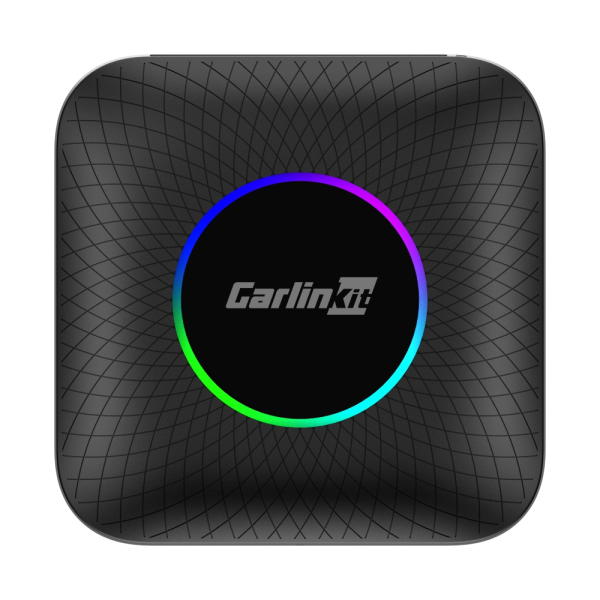
The Carlinkit Wireless CarPlay Ai Box 2024 is designed for effortless installation. It connects automatically, making it a favorite choice for many users. This adapter works with both CarPlay and Android Auto, which adds to its versatility.
Features:
- Ease of Use: Simply plug it in and connect.
- Compatibility: Works with iPhones from the iPhone 6 and above, including iOS 10.0 and later versions.
- Android Support: Compatible with Android devices running version 11.0 and higher.
Prerequisites: The Carlinkit Ai Box requires vehicles that support built-in CarPlay and Android Auto.
Why Choose Carlinkit?
- Established reputation for quality and reliability.
- Supports streaming from various apps, including Hulu, without issues.
Ottocast Ai Box Wireless Carplay Adapter
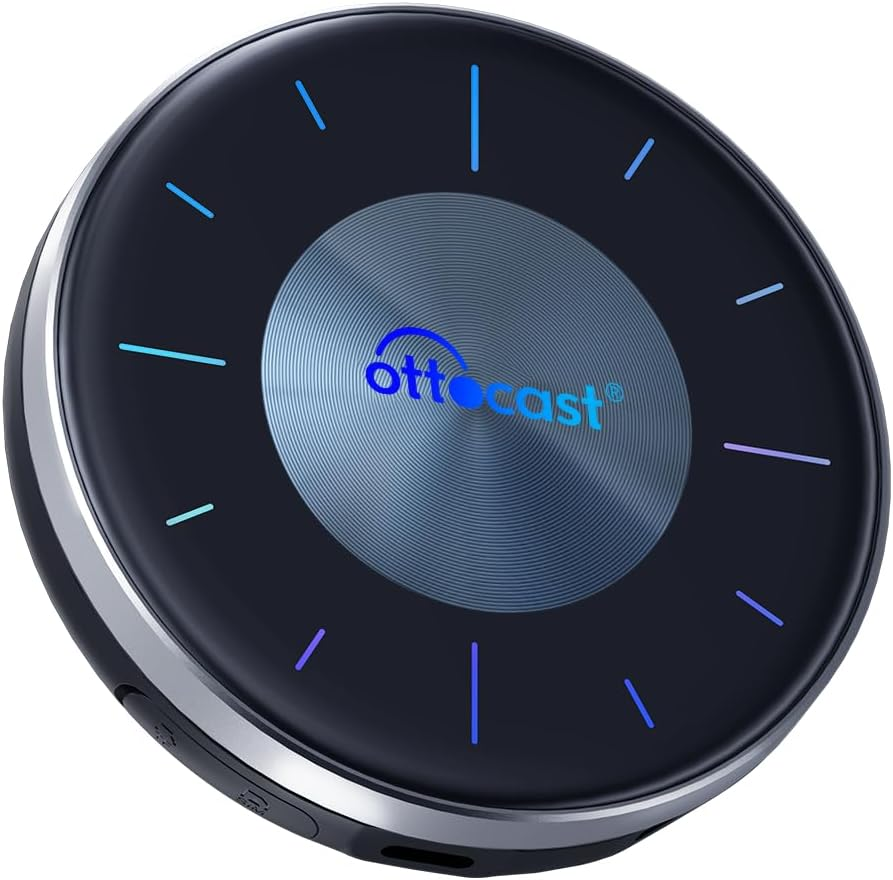
The Ottocast Ai Box is a notable addition to the list of wireless adapters, known for its strong performance and reasonable pricing. It features 4 GB of RAM and 64 GB of ROM, ensuring a smooth and lag-free connection.
Features:
- High Performance: Provides a reliable connection without delays.
- Broad Compatibility: Works with newer iPhone models, including the iPhone 16 series and other versions down to the iPhone 5.
- Multi-Platform Support: Can run numerous applications like Hulu, Netflix, and YouTube smoothly.
Compatible iPhone Models:
- iPhone 16 series, 15 series, 14 series, 13 series, 12 series, and older models down to the iPhone 5.
Compatible iOS Versions: This device supports a wide range of versions, from iOS 10 through iOS 18.
Benefits:
- Simple to set up with mobile hotspots for easy connectivity.
- Allows installation of additional streaming apps such as Spotify and Prime Video.
- Plays local videos and music from USB drives.
MMB Ai Box Wireless Carplay Adapter
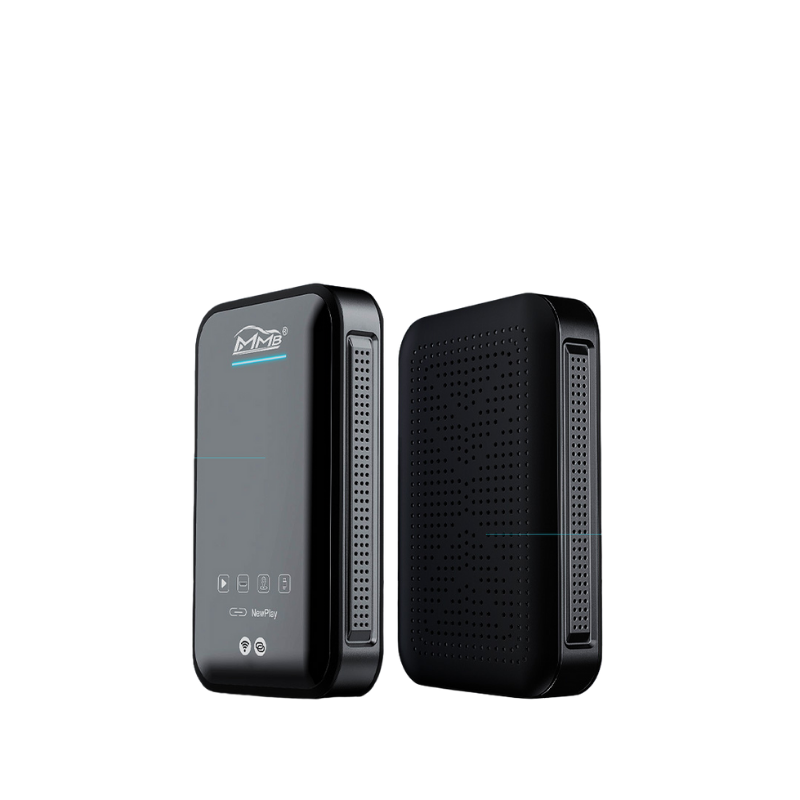
The MMB Ai Box is another excellent option for Apple CarPlay users. It’s praised for being fast and reliable, providing a seamless experience even for heavy streaming.
Features:
- Wide Compatibility: Supports all iPhone models, including the latest ones, from iOS 10 to iOS 18.
- Robust Specifications: Comes with 4 GB of RAM and 64 GB of internal storage for improved performance.
- User-Friendly: Easy to connect using mobile hotspots, so we stay connected each time we start the car.
Benefits:
- Enjoy our favorite streaming platforms, including Hulu and Netflix, without problems.
- Install additional apps for enhanced media choices, like Disney+ and local video playback from USB disks.
- After the initial setup, it stays linked for future use, simplifying our streaming experience.
By using any of these wireless adapters, we can enjoy Hulu and other streaming services conveniently while driving. Each option brings unique features to suit different preferences and vehicle compatibility.
Watch Hulu on CarPlay with Jailbreak
What is WheelPal?
WheelPal is an iOS application that permits users to utilize a variety of apps within Apple CarPlay. This tool is particularly useful because it allows for the installation of non-standard apps, such as streaming services like Hulu. To begin accessing Hulu on CarPlay through WheelPal, we first need to ensure the application is compatible with our device and proceed with the installation.
Getting Started
For those unsure about options to explore, we suggest visiting CarPlay Hacks. This platform provides guidance on both jailbreaking and non-jailbreaking methods tailored to individual devices.
Steps to Install WheelPal
Step 1: Download the CarPlay Hacks App
We begin by downloading the CarPlay Hacks app, which includes the official WheelPal app.
- For the smoothest experience, use the Safari browser on our iDevice for installation.
- If we are on a PC, a QR code will appear. Scanning this code with our iPhone will lead us directly to the next steps.
Once we install the CarPlay Hacks app, we can download the WheelPal app specifically for our device.
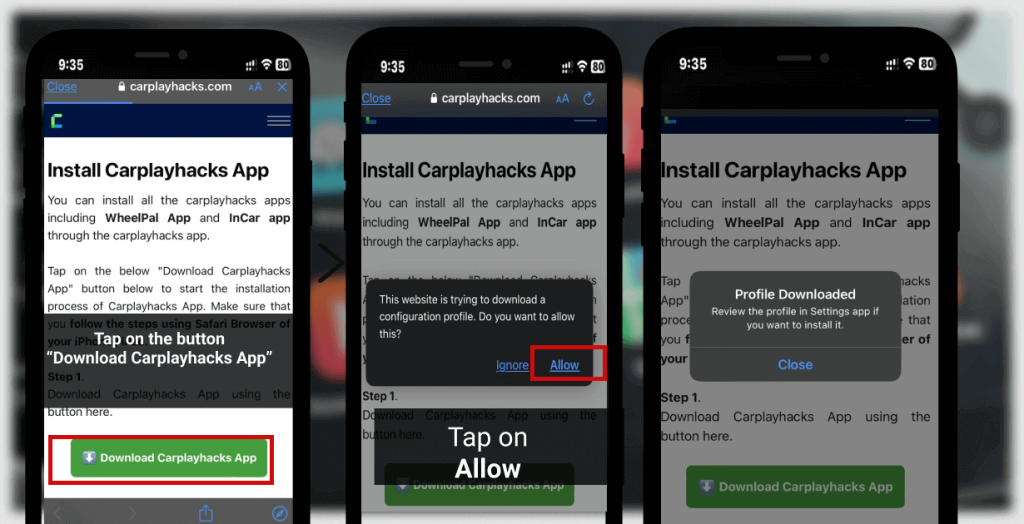
Step 2: Allow Configuration Profile
After initiating the download, a notification will prompt us to tap “Allow” to download the configuration profile from carplayhacks.
- Upon successful download, we will receive a message stating “Profile Downloaded.”
Step 3: Trust the Developer
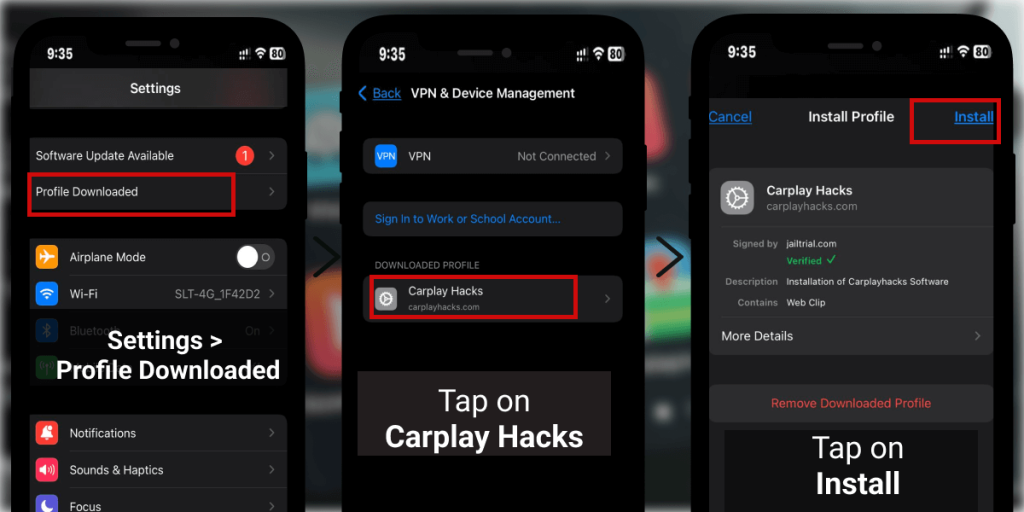
To ensure the app functions properly, we need to make the Enterprise developer a trusted one by following this path:
Phone Settings > General > Profiles & Device Management > Select the developer under Enterprise App.
Alternatively, we might see the downloaded profile in our settings. In this case, we tap on it, followed by:
- Tapping on CarPlay Hacks.
- Tapping the Install button located in the upper right corner.
- Entering our passcode for confirmation.
- Tapping Install again and then hitting Done.
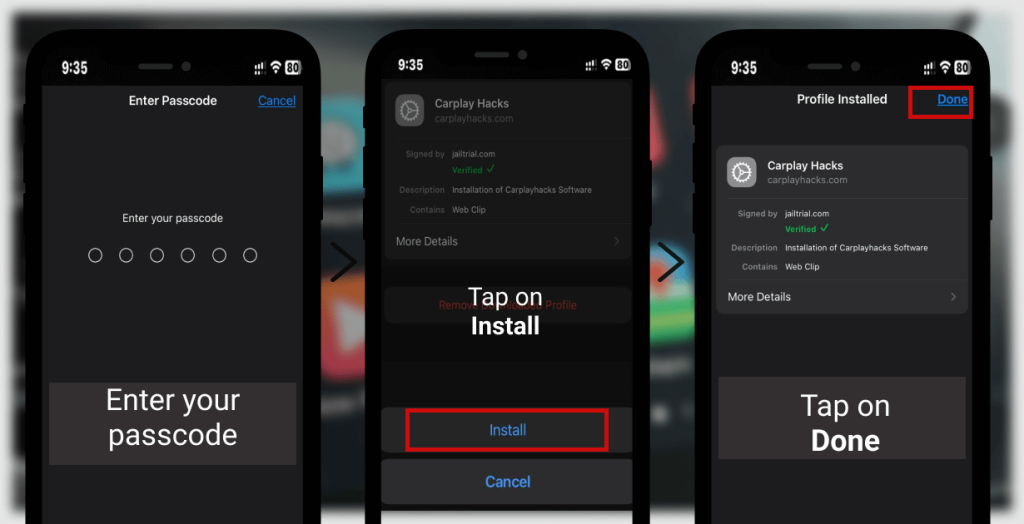
After this, we should return to our home screen to find the CarPlay Hacks app.
Step 4: Install WheelPal from CarPlay Hacks
Now, we will launch the CarPlay Hacks app, where the WheelPal app will be clearly accessible:
- Select the WheelPal app and tap on Install.
- When prompted, tap on Allow, and a notification will indicate that the profile has been downloaded.
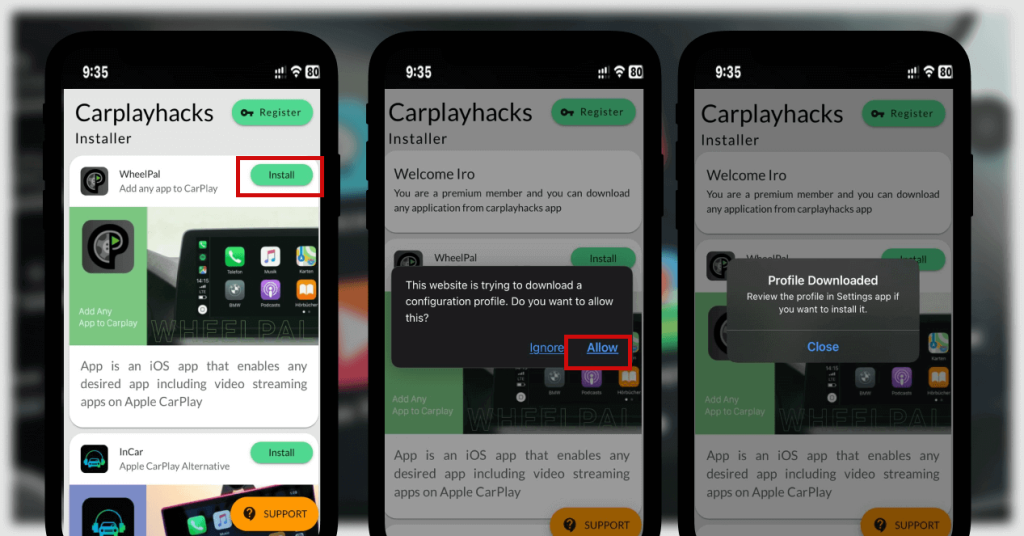
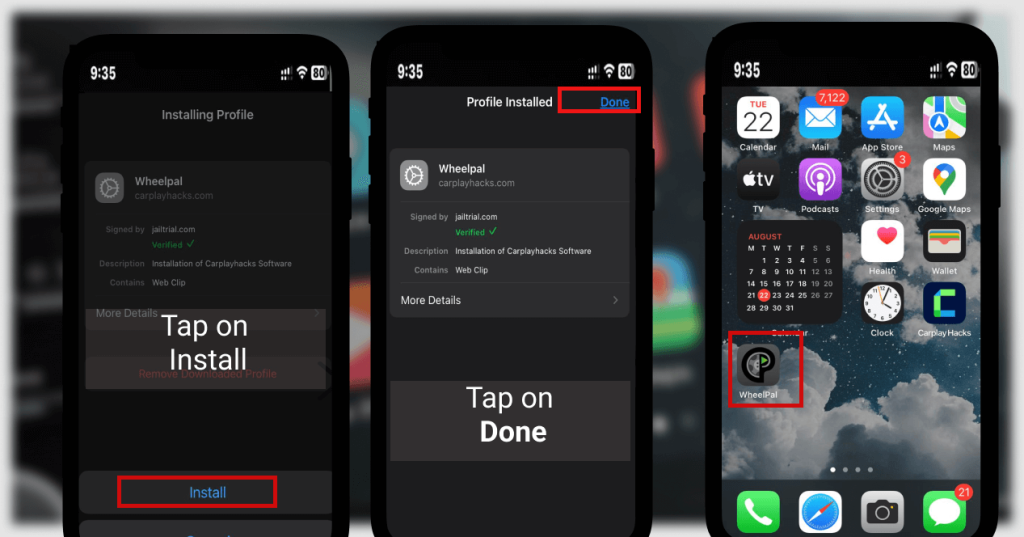
Step 5: Finalize Profile Installation
Next, we need to head back into our Settings:
- Tap on Profile Downloaded or navigate to Settings → General → VPN & Device Management → Downloaded Profile.
- We then press the Install button in the top right corner.
- After entering our passcode for authentication, we tap Install again and complete the process by tapping Done.
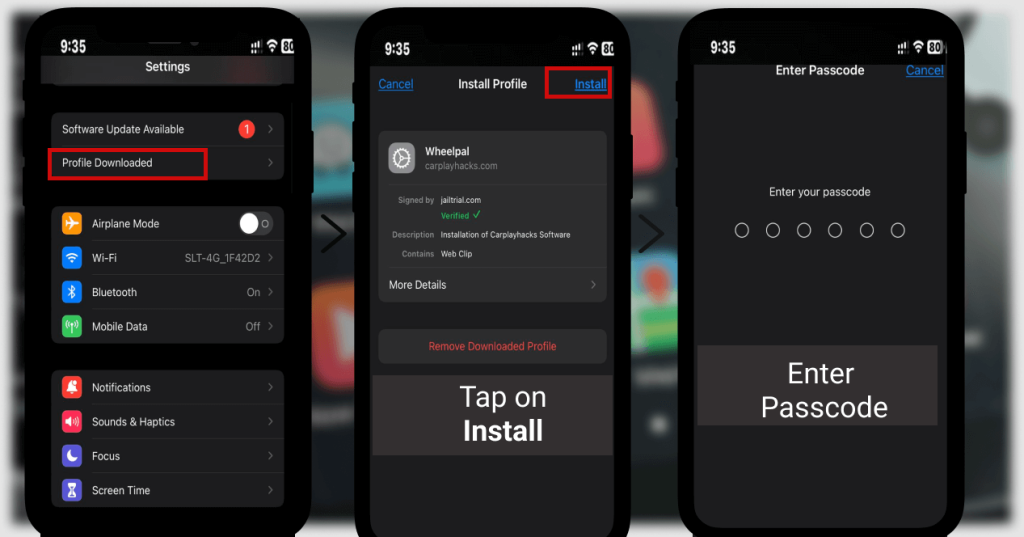
Step 6: Complete Installation of WheelPal
Now we should see the WheelPal app located on our home screen. To fully utilize the app:
- Open WheelPal and select our specific device model from the provided list, then tap Next.
- Choose which apps we’d like to install from the list available to us.
- From the various options, select our preferred method for adding apps to CarPlay.
Registration Process
After the installation, an email will arrive at our registered address with instructions. We need to register by confirming the email used during the process, tapping on Register, and then verifying it.
Step 7: Enjoying Apps on CarPlay
After completing registration, we can launch the WheelPal app and start using it. The app will guide us through selecting an app to install and provide further steps to enjoy services like Hulu on CarPlay.
Note on Pricing
While the WheelPal app itself is available for free, there is a one-time fee for the service that enables additional app access through CarPlay. Once activated, all the desired applications will be unlocked for our use.
FAQ related to CarPlay Hulu
What is the most effective method to view Hulu on CarPlay?
We have explored various options for streaming Hulu through Apple CarPlay, each with its advantages and downsides. For those mindful of costs, opting for a jailbreak tends to be the most economical choice, as it avoids the need for new hardware.
Can we stream Hulu via Apple CarPlay?
Hulu and similar video apps are generally unavailable on CarPlay due to safety regulations. The easiest way to access Hulu using CarPlay is by downloading third-party applications like WheelPal.
Is jailbreaking Apple CarPlay feasible?
Yes, it is possible. First, we should check if our iPhone is already jailbroken. If our device has a jailbreak, we will find a selection of compatible apps available. If not, we can easily jailbreak it using a third-party app such as WheelPal.
Why has Apple limited Hulu’s access to CarPlay?
Apple has implemented restrictions on video streaming apps like Hulu and Netflix because watching videos while driving can lead to dangerous situations.
Frequently Asked Questions
What are the top adapters we can use for streaming services like Hulu on CarPlay?
When looking for adapters to stream Hulu or similar services via CarPlay, we can consider a few options. Popular choices include units that support screen mirroring and have HDMI output. These adapters allow us to connect our devices easily, enabling a better viewing experience while ensuring compatibility with various streaming platforms.
How can we set up video playback for streaming applications on Apple CarPlay?
To enable video playback for streaming apps on CarPlay, we need to ensure our vehicle supports video playback features. This often involves connecting our iPhone to the car’s system and ensuring that we have the right settings enabled. Following the instructions in the app settings and consulting our car’s manual can help us navigate this process more smoothly.
Are there particular applications or tools that allow us to stream Hulu content on CarPlay?
While Hulu does not provide an official app for CarPlay, we can use certain apps that allow screen mirroring. By employing tools that support this feature, we can mirror our iPhone display to the CarPlay screen, letting us enjoy Hulu content while on the move.
What options do we have for watching movies via CarPlay while driving?
To watch movies through CarPlay safely, we should look into apps that enable screen sharing or use adapters that facilitate video playback. It’s essential to remember that viewing content while driving can be dangerous, so we should prioritize safety and only use these tools when parked.
Can we use AirPlay to stream video from services like Hulu through Apple CarPlay?
Yes, we can utilize AirPlay to stream video content from our devices to a compatible CarPlay system. By enabling AirPlay on our iPhone while connected to the CarPlay, we can cast Hulu videos directly, making it a versatile option for viewing content.
Is there a way to directly stream Hulu programming to our car’s entertainment system through CarPlay?
Direct streaming of Hulu content through CarPlay is not officially supported. However, using screen mirroring methods or compatible adapters can serve as alternatives to access Hulu on our car’s entertainment system. It is crucial to adhere to safety recommendations when using these methods while driving.