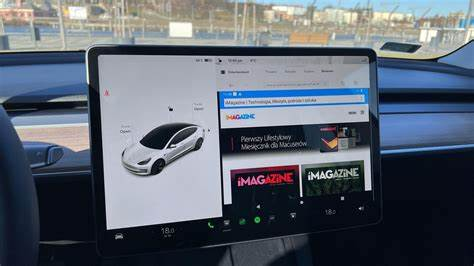
Many Tesla owners seek to use Android Auto, despite the fact that it is not directly supported by the manufacturer. We explore the most effective methods to enable Android Auto in Tesla vehicles. There are various hacks, applications, and adapters available, each claiming to provide this functionality.
As we delve into this topic, we will assess the reliability and performance of these solutions. Our aim is to provide clarity on which methods truly work and how they can enhance the driving experience for Tesla users who wish to integrate their Android devices.
How to use wireless CarPlay on Tesla?
Carlinkit Wireless Tesla AI Box Adapter

The CPC200-T2C 2.0 is specially designed for Tesla and helps Tesla upgrade with wireless Carplay. All you need to do is connect your Tesla to the T2C with the USB cable and then enjoy wireless Carplay. Simple and Money saving!
Key Features:
- Simple Installation: Just plug it in, and it’s ready to go.
- Compatibility: Works with Android Auto and Apple CarPlay.
- Voice Control: Supports voice commands using Google Assistant or Siri.
- Multiple Control Interfaces: Utilize both the touchscreen and steering wheel controls.
- Firmware Updates: Provides over-the-air updates for maintenance and improvements.
Supported Tesla Models:
- Tesla Model 3
- Tesla Model X
- Tesla Model Y
- Tesla Model S
How to use Android Auto on Tesla?
To utilize Android Auto on a Tesla, we have several options. We can choose from both hardware and software solutions. Below are some of the best methods to enable Android Auto on our Tesla vehicles.
1. Wireless Tesla AI Box Adapter
The Wireless Tesla AI Box Adapter, created by Ownice, is a top choice for enabling Android Auto in our Teslas. This adapter is praised for its ease of use and robust features.
Key Features:
- Simple Installation: Just plug it in, and it’s ready to go.
- Compatibility: Works with Android Auto and Apple CarPlay.
- Voice Control: Supports voice commands using Google Assistant or Siri.
- Multiple Control Interfaces: Utilize both the touchscreen and steering wheel controls.
- Firmware Updates: Provides over-the-air updates for maintenance and improvements.
Supported Tesla Models:
- Tesla Model 3 (after 2018)
- Tesla Model X (after 2018)
- Tesla Model Y (after 2018)
- Tesla Model S (after 2018)
Important Note: The adapter requires the vehicle to have MCU 2.0 or 3.0 and the capability to run the browser while driving. Keep in mind that some regions prohibit using the browser while the car is in motion, which can limit the use of this device.
2. Binize Wireless Adapter for Tesla Model 3/X/Y/S
The Binize Wireless Adapter is another excellent choice for making Android Auto accessible. It is designed to work with all Tesla models that support 5G Wi-Fi.
Features:
- Wide Compatibility: Fits Model 3 (2016-2023), Model Y (2019-2023), and Model S & X (2018-2023). Always verify if the vehicle can use the browser while driving.
- Android Compatibility: This solution supports Android 11.0 and newer versions.
- iPhone Support: Works with iPhone 8 and later for Apple CarPlay.
- Available Apps: Supports popular apps like Waze, Spotify, and Podcasts.
- User-Friendly: Automatically reconnects to Android Auto/CarPlay after the first connection.
- Wireless Connection: Connects through Bluetooth and Wi-Fi for a seamless experience.
Supported Tesla Models:
- Tesla Model 3
- Tesla Model X
- Tesla Model Y
- Tesla Model S
3. TeslAA for Android Auto
TeslAA is an app we can download from the Google Play Store that enables Android Auto through the Tesla browser. It’s an alternative software solution for those who prefer not to use hardware devices.
Known Issues:
- Video Responsiveness: When shifting to reverse, the video might freeze, requiring a browser refresh to fix it.
- Background Running: The app may get suspended by our phone’s system, necessitating a restart, which can be inconvenient.
- Performance: The app’s performance heavily relies on both the smartphone used and the Tesla browser. Users with mid-range phones may notice lag during video streaming.
- Charging Concerns: Using wireless charging may cause overheating, which could disrupt the app’s functioning; a wired connection may be necessary.
- Connection Range: If mobile data coverage is lost for an extended period, our Tesla may disconnect from the Wi-Fi hotspot, complicating future connections until data is restored.
Note: This method typically requires V3 Tesla hardware and may not be available in some regions due to restrictions on browser usage while driving. Watching videos on the move is disabled for safety reasons.
4. TeslaMirror
TeslaMirror is another app that can help us use Android Auto by mirroring our phone’s screen to the Tesla browser. It is available for download on the Google Play Store.
Requirements for TeslaMirror:
- The app requires the Tesla MCU2 hardware to function correctly. Vehicles that come equipped with MCU2 or have been upgraded from MCU1 are compatible.
Functionality:
While TeslaMirror mirrors the smartphone display onto the Tesla interface, it currently does not support audio streaming.
For further assistance and updates, we can explore the TeslaMirror FAQ page for any specific queries or troubleshooting advice.
By choosing one of these methods, we can effectively use Android Auto on our Tesla, making our driving experience more enjoyable and efficient.
FAQs on Tesla Android Auto
Is Android Auto Supported by Tesla?
Currently, no Tesla model comes with built-in support for Android Auto. Yet, for Tesla models made after 2018—like the 3, S, X, and Y—it’s possible to use Android Auto through various hacks or adapters. A key condition is that the car must allow browsing while it’s in motion.
Are There Hacks to Use Android Auto in Tesla?
Yes, we can enable Android Auto on our Teslas through specific applications or hacks. Tools like TeslAA and TeslaMirror help activate Android Auto if our devices are compatible with our Tesla.
What Tesla Models Can We Use for Android Auto?
Models such as the Tesla 3, S, X, and Y produced after 2018 can utilize Android Auto via apps or adapters. It’s important to note, though, that no Tesla model supports Android Auto natively.
Frequently Asked Questions
Which Tesla models work with the latest Android Auto adapters?
We often see compatibility questions regarding Android Auto adapters. Currently, many adapters support various Tesla models such as the Model 3, Model Y, Model S, and Model X. It’s essential to check the specific product details to ensure it can work with your vehicle.
What are the top-rated Android Auto adapters for Tesla vehicles?
When searching for the best Tesla Android Auto adapters, some popular choices include the Carlinkit series and products like the Teslogic Screenmate. Reviews and user feedback usually highlight features like ease of use and reliability.
How do third-party Android Auto adapters connect to Tesla systems?
Aftermarket Android Auto adapters typically connect via USB to the Tesla’s system. They create a bridge, allowing users to access Android features on their vehicle’s display. Installation generally involves plugging in the adapter and setting up the connection through Tesla’s interface.
Are there differences in features among Android Auto adapters for Tesla?
Indeed, there are differences in functionality among various Android Auto adapters for Tesla vehicles. Some may offer wireless connectivity, while others support wired connections. Features like voice assistant integration, app access, and screen mirroring can vary by model as well.
What should we think about when comparing prices of Tesla Android Auto adapters?
When we compare prices of Android Auto adapters, we should consider factors like compatibility, features offered, and build quality. Cheaper options may lack important functionalities or support, while investing in a more reputable brand can enhance our in-car experience.
Are there any installation issues with Tesla-specific Android Auto adapters?
Installation of Tesla-specific Android Auto adapters can be straightforward, but some users report minor challenges. These may involve ensuring proper fit or adjusting settings within the Tesla system. It’s beneficial to follow the provided instructions for the best results.