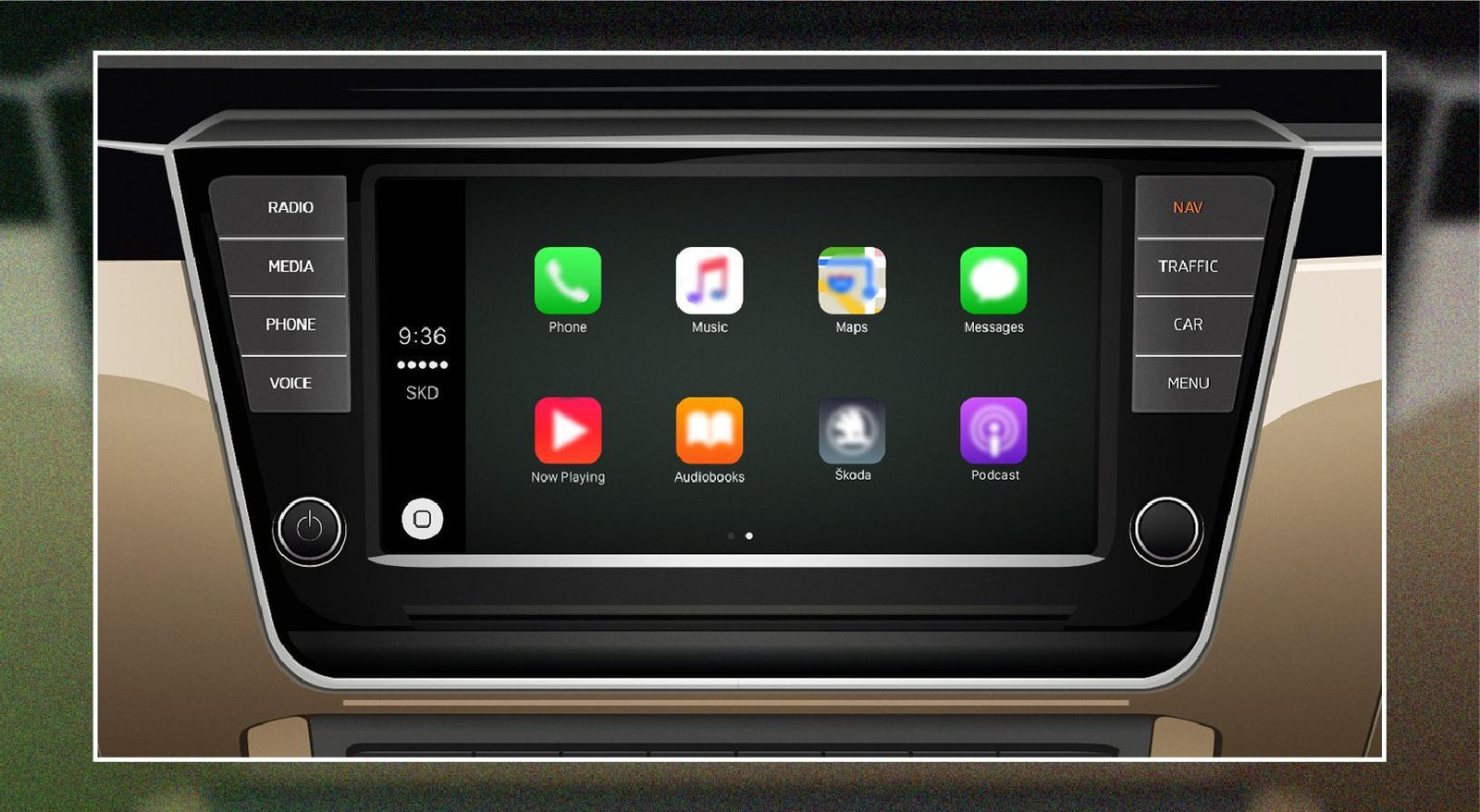
Apple Car Key offers a modern and convenient solution for accessing our vehicles. This innovative feature allows us to lock, unlock, and start our cars directly from the Wallet App on our iPhones, eliminating the need for traditional physical keys. With this technology, we can enjoy a seamless experience that enhances our daily routines.
As we explore Car Key further, we will uncover its features, compatible vehicles, and the ways it transforms how we interact with our cars. This discussion will provide a comprehensive look at how this smart solution is changing the landscape of car access and security.
Understanding Apple Car Key
Apple Car Key is a digital feature that allows us to use our NFC-enabled devices, such as iPhones and Apple Watches, to communicate with compatible vehicles. This innovation enables us to unlock, lock, and start our cars without the need for a traditional key.
With the introduction of Car Key in iOS 13.4 beta, Apple has taken another step in integrating daily essentials into our devices. Now, we can control our vehicle functions directly using our iPhones, iPads, Macs, or Apple Watches. This functionality has been further enhanced in iOS 14 and later versions, showcasing Apple’s commitment to improving security and user experience.
Key Features of Apple Car Key:
- NFC Technology: By using NFC, we can simply hold our iOS device near the car to unlock or start it.
- Sharing Capability: We can conveniently share our digital keys with others through messaging apps, similar to sharing a smart home key. This feature allows us to set different permission levels for different users.
- Custom Permissions: For instance, we might grant our spouse permanent access while providing temporary access to other family members or friends.
This innovation not only enhances the way we access and secure our vehicles but also simplifies our interactions, making car ownership more convenient and streamlined. With continuous updates, we can expect even more improvements to the security and functionality of this feature in the future.
How to install Apple Car Key
Requirements to have Apple Car Key
To get started with Apple Car Key, we need a few things:
- Compatible Vehicle: Our car must support Apple Car Key. Currently, many CarPlay compatible manufacturers aim to implement this feature, but it’s primarily available in BMW models.
- Device Specifications: We need an iPhone XS or later running iOS 13.4 or newer, or an Apple Watch Series 5 or newer.
- Apple ID: We must sign in to our device using an Apple ID.
- Passcode Security: We should set up a passcode for security purposes.
- Manufacturer Account: Lastly, we need to be connected to our car manufacturer’s account. Assistance may be available from the manufacturer’s customer service or dealership if needed.
How to add car keys to the Wallet app on your iPhone
If we have just purchased a new iPhone or reset our current one, we will need to re-add our car keys. Here’s how we can do it:
- Start by opening the app provided by our car manufacturer.
- Follow the prompts shown in the app to set up our car key.
- When the app directs us to the Wallet app, we should tap Continue.
- We will then need to place our iPhone on the car’s key reader, following the on-screen instructions until our iPhone and the car are paired.
- Finally, we should tap Done to complete the process.
Add car keys from an email / Text Message
In some cases, we can add our car keys via a link sent from our car manufacturer through an email or text. Here’s the procedure:
- After adding our vehicle to the manufacturer’s account, we will receive an email that includes a link for initiating the car key setup.
- We should click on the link provided in the email.
- When directed to the Wallet app, we tap Continue.
- As with the first method, we place our iPhone on the key reader as indicated in the instructions and wait for the pairing to complete.
- We tap Done to finish the setup.
Additionally, we can also utilize the infotainment display of our car. We just need to go to the key section on the display and follow the on-screen prompts, repeating steps three to five from above in the Wallet app.
Importance of NFC for a virtual Car Key?
NFC, which stands for Near Field Communication, plays a crucial role in our Apple Car Key experience. This technology allows for a short-range wireless connection between NFC-enabled devices.
NFC simplifies various daily tasks like financial transactions and connecting devices with just a simple touch. For Apple Car Key, this means we can unlock our vehicles quickly and securely without needing a physical key. The convenience and security provided by NFC make it an essential feature that enhances our car access experience.
Utilizing NFC helps in ensuring that our key remains protected, while also streamlining the way we interact with our vehicle, making the process efficient and user-friendly.
Benefits of Using Apple Car Key
Using Apple Car Key allows us to unlock and start our car quickly and easily. Losing our keys or forgetting them can be a frustrating experience. Instead of calling someone for help, we can simply use our iPhone or Apple Watch to access our vehicle. This feature offers a safer and more convenient alternative to traditional physical keys. With Apple Car Key, we can take control of our car access right from our smartphones, streamlining our daily routines while enhancing security. It’s a modern solution that fits our busy lifestyle perfectly.
How to use Apple Car Key?
1. Lock and Unlock Car
We can easily lock and unlock our car using Apple Car Key. To unlock the vehicle, we simply hold our iPhone or Apple Watch close to the door handle. If our car is already unlocked, bringing our device close to the door allows us to lock it in just seconds. It’s a fast and convenient way to manage car security.
2. Start Car
Starting our car with the Apple Car Key is straightforward. We do the following steps:
- We place our iPhone on the car’s key reader or hold our Apple Watch near it.
- Next, we press the start button in the car.
- Our car will start right away.
This method eliminates the need for traditional keys, making the process smoother.
3. Use Express Mode
Express Mode is a useful feature that enables us to unlock the car door and start the vehicle quickly without additional authentication. This mode is activated by default when we add our car key to the Wallet app. If we decide to turn it off, we will need to authenticate each time we want to use our iPhone as a car key.
To turn off Express Mode:
- We begin by opening the Wallet app on our iPhone.
- Next, we tap the card for our car key.
- We then tap the More button, which appears as three dots.
- Finally, we toggle off the Express Mode option.
This allows us to control how we want to use our car key depending on our preferences.
5. Revoke a Shared Car Key
If we decide we no longer want someone to have access to our car key, we can revoke their access at any time. The steps are simple:
- We open the Wallet app on our iPhone.
- Next, we tap the card for our car key.
- We tap the More button.
- Then, we select the name of the person whose access we want to remove.
- Finally, we tap Revoke Access.
After doing this, the person will receive a notification that their access has been revoked.
6. Delete a Car Key
If we need to remove a car key from our devices entirely, we can do so easily. The steps include:
- Opening the Wallet app on our iPhone.
- Tapping the card for our car key.
- Tapping the More button.
- Selecting Remove This Car Key.
- Lastly, we tap Remove to confirm the deletion.
Doing this will ensure that the car key is no longer stored on our device.
Apple Car Key provides us with a convenient and secure way to manage our vehicle access without the need for physical keys. Each function is designed to enhance our experience, making car ownership easier and more connected.
Cars Compatible with Apple Car Key
We find that several vehicle manufacturers have embraced NFC technology, allowing for compatibility with Apple Car Key. Major brands like BMW, Mercedes-Benz, Tesla, and Hyundai offer various models equipped with this feature. This technology enables convenient access and use of our vehicles through mobile applications.
Here are some BMW models that support Apple Car Key:
- Series: 1, 2, 3, 4, 5, 6, 8
- X Models: X5, X6, X7
- M Models: M5, M8, X5 M, X6 M
- Other: Z4
Other brands utilizing NFC include Audi, Honda, Toyota, Volkswagen, Cadillac, and Volvo. The integration of NFC technology promises an enhanced driving experience for users.
Compatible Phones for Apple Car Key
For us to use the Apple Car Key feature, we need a compatible iPhone model released from 2018 onwards. The specific models that support this functionality include:
- iPhone XR
- iPhone XS and iPhone XS Max
- iPhone 11
- iPhone 11 Pro and iPhone 11 Pro Max
- iPhone SE (2nd generation)
- All models from the iPhone 12, 13, 14, 15, and 16 series
Our device must also be running iOS 13.6 or later. To check and update our iOS version, we can go to Settings → General → Software Update.
Apple Car Key Features in iOS 15
With the release of iOS 15 in September 2021, we saw notable upgrades to the Apple Car Key feature. This update incorporates Ultra Wideband Technology, enhancing how we unlock and start our vehicles. Users can conveniently unlock their supported cars without needing to take their iPhones out of bags or pockets.
This technology offers precise spatial awareness, ensuring our phones are readily available when starting the car. It also prevents us from accidentally locking the car while leaving our phone inside.
The improvements to Apple Car Key reflect a commitment to expanding its usability, with a focus on user convenience and safety. As we look toward future updates, we can anticipate even more enhancements as this technology continues to evolve. While iOS 18 is the latest version, we are eager to see how Apple will further develop this feature in subsequent releases.
Add Any App On Carplay Without Jailbreak
Adding apps to CarPlay without needing to jailbreak our iPhones is now possible. This allows us to enjoy popular streaming services like Netflix and YouTube directly on our CarPlay interface. Let’s explore some hardware solutions that make this innovative technology work for us.
01. Carlinkit AI Box
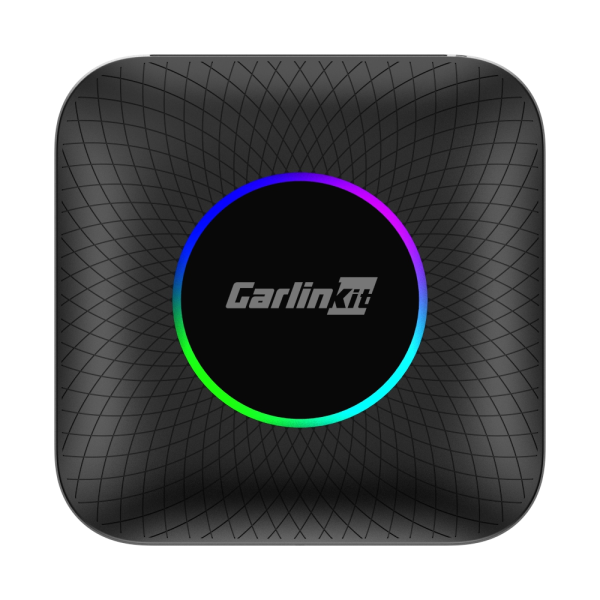
The Carlinkit AI Box is a top-rated wireless adapter for CarPlay in the aftermarket. With this device, we can seamlessly integrate popular apps into our CarPlay experience.
Key Features:
- Device Compatibility: Supports iPhone models from the iPhone 6 and later, including the latest iPhone 16 series.
- iOS Support: Works with iOS versions 10 through 17 and has been tested for iOS 18.
- Built-in CarPlay Required: It is essential to have a vehicle with built-in CarPlay.
- Recommended Vehicles: Ideal for 2017-2024 models that have OEM wired CarPlay and a touch screen.
- Wired to Wireless Conversion: Transforms a wired CarPlay connection into a wireless one.
- USB Support: Offers USB connectivity for additional options.
- Streaming Capabilities: Enjoy video streaming from Netflix, YouTube, TikTok, and more.
- Fast and Reliable: Emphasizes a quick and consistent connection.
- Wireless Connection: Allows us to connect using Wi-Fi and Bluetooth, eliminating the need for USB cables.
02. MMB AI Box
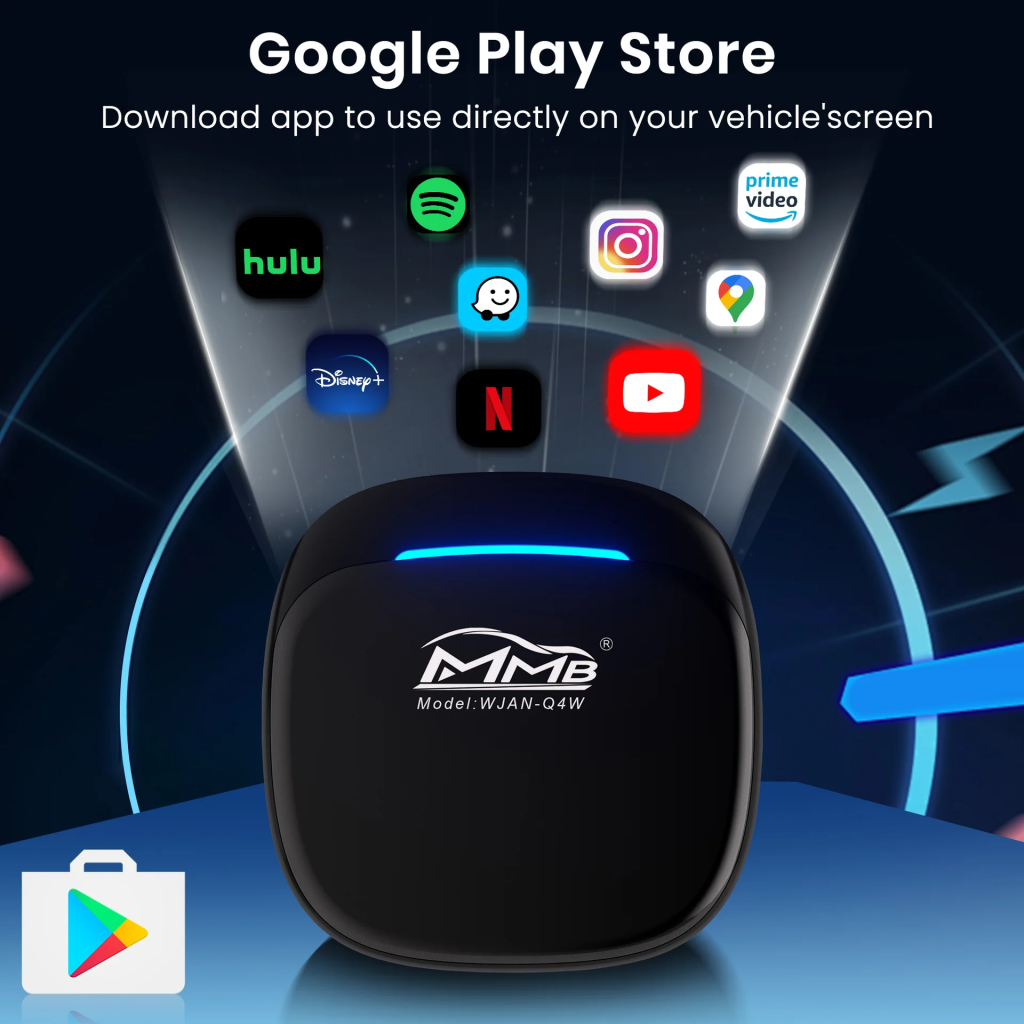
The MMB AI Box is another well-regarded option in the aftermarket for CarPlay integration. It shares similar functionalities that allow us to access various streaming apps.
Key Features:
- Vehicle Compatibility: Designed for cars with built-in CarPlay functionality.
- iOS Versions Supported: Compatible with iOS versions 10 through 17, including updates for iOS 18.
- iPhone Support: Works with the iPhone 6 series and later, up to the iPhone 16 series.
- No USB Required: Connects wirelessly without needing a physical USB connection.
- Connectivity Options: Utilizes both Wi-Fi and Bluetooth for easy setup.
- Streaming Support: Enables us to watch Netflix, YouTube, and other video content on CarPlay.
- Quick Setup: Known for an easy and efficient connection process.
With these tools, we can enhance our in-car experience and enjoy our favorite apps without the need for complicated setups or jailbreaks.
Frequently Asked Questions
What are the ways to add Apple Car Key features to my vehicle?
We can explore several methods to incorporate Apple Car Key capabilities into existing vehicles. This may involve software upgrades from the manufacturer, partnerships with third-party developers, or using specialized aftermarket kits designed for compatibility.
Which aftermarket solutions are available for Apple Car Key integration?
There are various aftermarket options we can consider for integrating Apple Car Key into our vehicles. These might include devices that connect to the vehicle’s locking system or Bluetooth solutions that allow smartphones to unlock and start the car.
How can we make our vehicle Apple Car Key compatible?
To retrofit a vehicle for Apple Car Key, we need to identify compatible aftermarket kits, consult with professionals, or use specified devices that interact with our car’s electronic systems. Following manufacturer guidelines during installation is crucial for safety and functionality.
Are there particular car brands that work with aftermarket Apple Car Key kits?
Many brands may support aftermarket Apple Car Key solutions, but it’s important to research individual vehicle models. Common manufacturers that are more likely to offer compatibility include BMW, Ford, and others, though options can vary quite a bit.
What factors should we keep in mind before choosing an aftermarket Apple Car Key solution?
Before purchasing an aftermarket product, we should consider our vehicle’s compatibility, the reputation of the product brand, installation requirements, and available customer support. It’s important to read reviews and ensure the chosen solution meets our needs and expectations.
Can we use Apple CarPlay and Apple Car Key features together with aftermarket products?
Yes, in most cases, Apple CarPlay and Apple Car Key functionalities can be implemented simultaneously through aftermarket solutions. It’s important to verify that the chosen products support both features to enjoy the full range of capabilities.