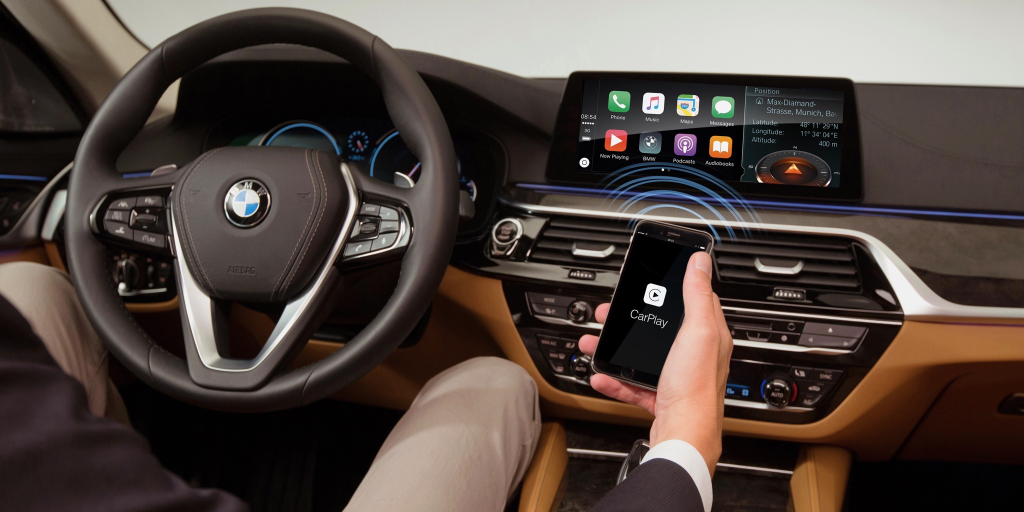
BMW is renowned for its commitment to delivering exceptional features that enhance the driving experience. We believe that CarPlay integration in BMW vehicles is an important topic, as it takes convenience and enjoyment to a whole new level for drivers.
With the recent updates brought by iOS 16, Apple has improved both the functionality and security of its CarKey feature, currently available exclusively to BMW users. In this article, we will explore the benefits and details of CarPlay in BMW vehicles, providing insights into how this technology transforms our driving experience.
Apple CarPlay for BMW
Benefits of Using CarPlay with BMW
Using Apple CarPlay in our BMW vehicles provides us with several advantages. First, it offers a smooth connection between the car and our iPhones. With Siri, Apple’s voice assistant, we can easily make and receive calls without taking our eyes off the road. Additionally, CarPlay allows us to dictate messages and have them read aloud, ensuring we stay connected while driving.
Another major benefit is the integration of navigation apps, such as Apple Maps, Waze, and Google Maps. This means we can get directions directly on our car’s display. Furthermore, we can access all our music and content through the native iDrive system, enhancing our driving experience.
BMW Models That Support Apple CarPlay
Apple CarPlay is compatible with a range of BMW models, including:
- BMW Series Models: 1, 2, 5, 7
- BMW X Models: X1, X2, X3, X4, X5, X6, X7
- BMW Electric Models: i3, i8
This compatibility allows many BMW drivers to enjoy the benefits of CarPlay.
Steps to Set Up Apple CarPlay in BMW
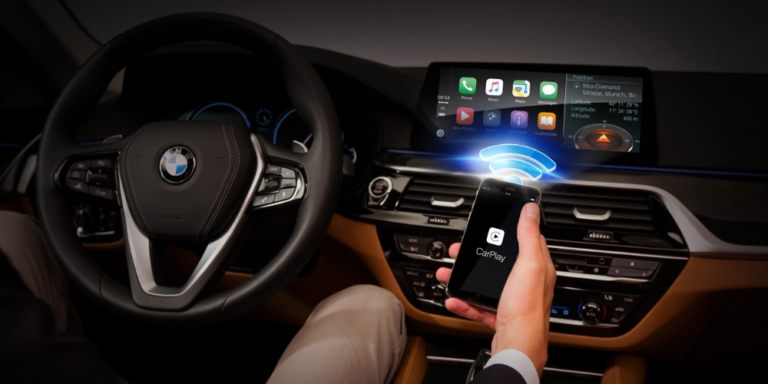
To install Apple CarPlay in our BMW, we should follow these steps:
- Activate Bluetooth, WiFi, and Siri on the iPhone.
- On the iDrive 7 screen, press COM on the left side.
- Select Mobile Devices.
- Click on New Device.
- Choose Phone Calls and Audio.
- Our iDrive system will now be discoverable on our iPhone.
- Select our BMW from the Bluetooth devices on the iPhone.
- Pair the devices as prompted.
- Confirm the displayed PIN on both screens.
- Finally, select the option to connect to Apple CarPlay on the iDrive screen.
Once these steps are complete, our iPhone and BMW will be connected.
Apps Compatible with Apple CarPlay in BMW
CarPlay lets us access numerous applications that work with the iOS system. Some key apps include:
- Navigation: Apple Maps, Google Maps, Waze
- Music and Audio: Spotify, Apple Podcasts, Amazon Prime Music, Audible
- Communication: WhatsApp
- Radio: SiriusXM Satellite Radio, iHeartRadio
This range of apps enhances our driving experience by providing entertainment, navigation, and communication options at our fingertips.
How to Obtain Third-Party Applications for BMW CarPlay
Some apps such as YouTube, Facebook, and Netflix are not included in CarPlay by default for safety reasons. To add preferred applications, we can utilize the WheelPal app, allowing us to enhance our CarPlay experience.
BMW’s Apple CarKey Feature
Apple’s CarKey allows us to lock and unlock our BMWs using our iPhones. Introduced with the iOS 13.6 update and improved in iOS 15, this feature enhances both convenience and security. If we own a newer BMW model, we can enjoy the ease of this functionality.
Key Benefits:
- No More Locked Keys: We no longer have to worry about accidentally locking our phone inside the car.
- Essential Connection: Our phone is necessary for both locking and unlocking, ensuring we always have it with us when we need to access our vehicle.
We encourage you to check out additional resources for a complete list of compatible BMW models and the iPhones that support CarKey functionality.
Stay tuned with us at carplaylab.com for the latest tips, tricks, and news related to CarPlay and Android Auto. Whether you’re driving a BMW, Audi, or Mazda, our updates will keep you informed and connected.
Multimedia Android IOS Box For BMW
The MMB Multimedia Android IOS Box for BMW offers several advanced functions that enhance your vehicle’s infotainment system. Here are some key features:
Wireless CarPlay and Android Auto: The MMB Box allows you to use Apple CarPlay and Android Auto wirelessly, providing seamless integration with your smartphone for navigation, music, and other apps.
Streaming Services: You can access popular streaming services such as YouTube, Netflix, and Hulu directly on your car’s display, allowing for entertainment during stops or while parked.
Internet Access: The device supports internet connectivity via a 4G SIM card, enabling you to browse the web and use online services without relying solely on your smartphone’s hotspot.
App Downloads: The MMB Box allows you to download apps from the Google Play Store, expanding the functionality of your BMW’s infotainment system beyond the pre-installed options.
High-Resolution Display: It maintains high-resolution image quality, ensuring that the visuals on your car’s screen are clear and vibrant, similar to the original display quality.
Easy Installation: The MMB Box is designed as a plug-and-play device, making it easy to install without the need for extensive modifications to your vehicle.
These features make the MMB Multimedia Android IOS Box a versatile addition to BMW vehicles, enhancing both functionality and entertainment options.

Frequently Asked Questions
How do we determine if our BMW has Apple CarPlay?
To check if your BMW is equipped with Apple CarPlay, we can look for the option in the vehicle’s settings. We should also consult our owner’s manual or reach out to the dealer with our Vehicle Identification Number (VIN) for accurate information.
Which model year did BMW begin offering Apple CarPlay?
BMW started integrating Apple CarPlay into their vehicles in 2016. This feature first became available as an option on select models and has since become standard in more recent releases.
Can we activate Apple CarPlay in our BMW without a fee?
In most cases, activating Apple CarPlay in our BMW requires a purchase. While some earlier models might have had promotions or offers, generally, we must pay for the feature either upfront or as part of a subscription.
How can we upgrade our BMW to include Apple CarPlay?
To upgrade our BMW for Apple CarPlay, we can either visit a BMW dealer or use the BMW Connected app if our vehicle supports it. The dealer can assist with setup and ensure our system is compatible with the upgrade.
What steps should we follow to connect our iPhone to our BMW using Apple CarPlay?
To connect our iPhone to the BMW through Apple CarPlay, we should follow these steps:
- Ensure iPhone Compatibility: Check that our iPhone runs iOS 9.3 or later.
- Activate Bluetooth and Wi-Fi: Enable both features on our iPhone.
- Use USB Cable or Wireless Connection: Connect the iPhone to the car using a USB cable or connect wirelessly if our BMW supports it.
- Select CarPlay: On the BMW display, select the CarPlay option to start using the interface.
What actions can we take if Apple CarPlay is not functioning in our BMW?
If Apple CarPlay isn’t working, we can take several troubleshooting steps:
- Restart Devices: Restart both the iPhone and the vehicle’s infotainment system.
- Check Connections: Ensure the USB cable is secure or Bluetooth connectivity is enabled.
- Update Software: Make sure both the iPhone and the BMW software are up-to-date.
- Visit a Dealer: If issues persist, we may need to consult a dealer for professional assistance.