Apple CarPlay offers a practical way for us to access mobile apps while driving. By connecting our iPhones to the car’s infotainment system, we can benefit from features that enhance our driving experience. While CarPlay comes with valuable applications such as Google Maps, phone, and messaging, it does have limitations, particularly when it comes to entertainment options. Many popular apps like YouTube, Netflix, and Hulu are not available, mainly due to safety concerns for drivers.
Despite these restrictions, we can still find ways to enjoy these apps during our travels. With a few tips and tricks, we can customize our CarPlay experience. From adding compatible apps to exploring hardware solutions, we can discover various methods to make the most out of Apple CarPlay. In the following sections, we will explore how to enhance our CarPlay setup and access more features while keeping safety in mind.
How to Add Apps to Apple CarPlay
To add apps to Apple CarPlay, we can follow a few simple steps:
- Open Settings and select General.
- Tap on CarPlay and choose our vehicle.
- Hit Customize to see the available options.
- To include new apps, press the Add button or remove existing ones with the Delete button.
- We can also rearrange the apps by tapping and dragging them into our desired order.
Next time we connect our iPhone to CarPlay, the updated arrangement will be visible. Remember, only apps that support CarPlay will appear on the screen, ensuring a streamlined experience while driving.
Compatible Apps on Apple CarPlay
We can take advantage of several default apps that enhance our driving experience with Apple CarPlay. Some of our top choices include:
- Navigation Apps: Apple Maps, Google Maps, Waze
- Music Apps: Apple Music, Spotify, YouTube Music, Tidal, Amazon Music
- Radio Apps: Sirius XM Radio, Pandora, iHeart Radio, Radio Disney
- Podcast Apps: Apple Podcasts, Spotify, Stitcher, Overcast
- Communication Apps: Phone, Messages, WhatsApp, MS Teams
These apps greatly improve our time on the road.
How to Add Any App to Apple CarPlay
Many entertainment apps may not appear on the default list for CarPlay. Thankfully, we have found a solution that allows us to include these apps easily.
WheelPal
The WheelPal app is an excellent tool for adding any app to Apple CarPlay. With WheelPal, we can enjoy video streaming services like YouTube and Netflix right in our vehicles. This app enhances our CarPlay experience by opening up new entertainment options that were previously unavailable.
To add apps to Apple CarPlay using WheelPal, you typically need to follow these steps, keeping in mind that WheelPal is a third-party app that may not be officially supported by Apple. Here’s a general guide:
- Install WheelPal: First, make sure you have the WheelPal app installed on your iPhone. You can download it from the App Store if you haven’t done so already.
- Connect Your iPhone: Connect your iPhone to your car using a USB cable or via Bluetooth if your car supports wireless CarPlay.
- Open WheelPal: Launch the WheelPal app on your iPhone. Follow any on-screen prompts to set it up.
- Add Apps: Within WheelPal, you should see options to integrate or add apps. This might include selecting from a list of compatible apps or configuring settings to allow specific apps to work with CarPlay.
- Customize Settings: Depending on the features of WheelPal, you may have options to customize how the apps display or function within CarPlay.
- Access via CarPlay: Once you’ve added the apps through WheelPal, you should be able to access them through the CarPlay interface on your car’s display.
- Voice Control: You can also use Siri to open the apps you’ve added, as long as they are compatible with CarPlay.
Stream Videos on Apple CarPlay
When traveling, watching videos can enhance our experience, especially if we are passengers. While driving, it’s important to prioritize safety. Fortunately, we have options to enjoy video streaming while the car is parked or during breaks.
View YouTube on Apple CarPlay
For those wishing to access YouTube on Apple CarPlay, we have a few methods to consider.
- Jailbreak Solutions: If we choose to jailbreak our devices, options include:
- WheelPal
- CarBridge
- NGXPlay
- CarPlayEnable
- Non-Jailbreak Options: For users who prefer not to jailbreak, we can utilize:
- CarTube
- Wireless CarPlay adapters
Each of these methods allows us to enjoy YouTube videos according to our preferences. Detailed guides on these solutions can assist us in navigating the setup for YouTube on CarPlay.
Access Netflix on Apple CarPlay
Netflix has become a popular choice for entertainment. Unfortunately, it cannot be added to Apple CarPlay by default. However, there are alternatives we can explore.
- Jailbreak Method: By using the WheelPal app, we can enable Netflix on our CarPlay.
- Non-Jailbreak Method: Wireless hardware adapters are also available that allow us to enjoy Netflix without modifying our devices.
If we are keen to explore Netflix through CarPlay, we have created a comprehensive guide to help us navigate the process and get the most out of our streaming experience.
Adding Any App to Apple CarPlay with Hardware Solutions
For those of us who prefer not to jailbreak our devices, a hardware adapter provides a great alternative. Several adapters are available that allow us to stream our favorite videos directly on Apple CarPlay.
Carlinkit Wireless CarPlay Ai Box
The Carlinkit adapter enhances our CarPlay experience by allowing us to view films and video content without needing to jailbreak.
Features:
- Compatibility: Supports iPhone 6s through to the iPhone 15 series.
- iOS Support: Compatible with iOS versions 10 to 17.
- Built-In Functions: Upgrades a wired system to wireless CarPlay.
- Streaming Capabilities: Enables streaming from platforms like Netflix and YouTube.
- Connection Method: Uses both Wi-Fi and Bluetooth for seamless connectivity.
Changing Wired CarPlay to Wireless
We can easily upgrade your wired CarPlay setup to a wireless experience using specific adapters. This change not only enhances convenience but also improves functionality while driving.
Wireless CarPlay Adapter Options
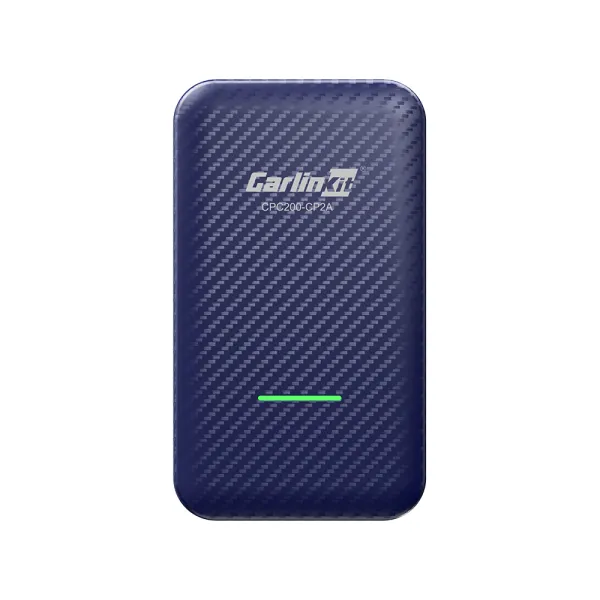
The Carlinkit wireless adapter is designed to convert your wired CarPlay into a wireless version. It is compatible with vehicles produced between 2015 and 2023 that have built-in wired CarPlay.
Key Features:
- Works with USB or Type-C ports
- Simple installation process – just plug and play
- Reduces latency for a smoother experience
- Compatible with a wide range of car models
2. MMB Wireless CarPlay Adapter
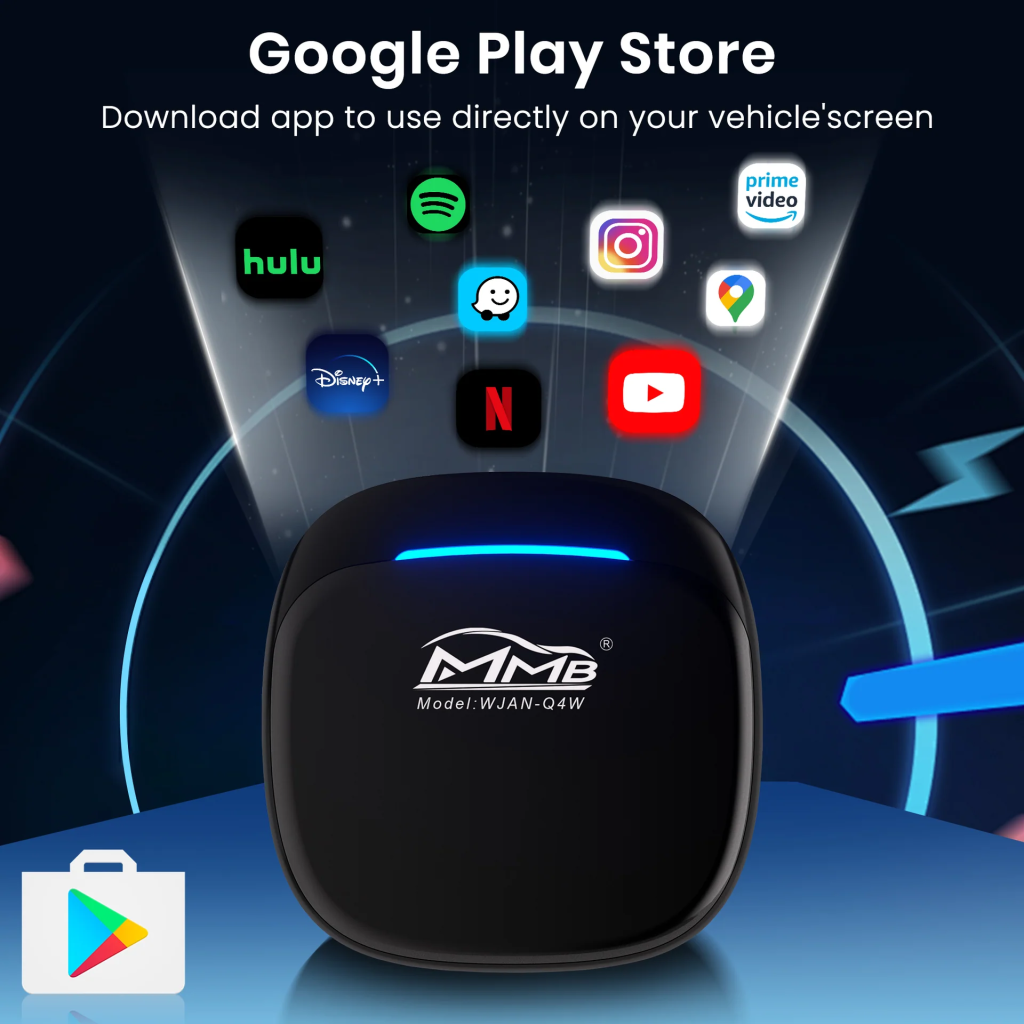
The MMB wireless adapter serves a similar purpose, transforming your wired setup into a wireless one.
Features:
- Exclusively designed for cars with built-in wired CarPlay
- Facilitates a plug-and-play setup
- Equipped with a built-in GPS module
- Connects via Bluetooth for ease of use
For those interested in expanding their CarPlay functionality, there are various apps that can be easily installed, whether your system is jailbroken or not. We frequently provide updates and solutions tailored for all your CarPlay needs.
If you want to integrate specific apps like Outlook or popular services such as Starbucks and Spotify, we have guides available. Our commitment is to keep you informed about the latest in Apple CarPlay to enhance your driving experience. Please stay connected with our updates for more useful information!
Frequently Asked Questions
How do we add more apps to Apple CarPlay?
To add extra apps to Apple CarPlay, we first need to ensure the desired applications are installed on our iPhone. Then, we connect our iPhone to the car’s system, access the Settings app, and navigate to General. From there, we select CarPlay and choose our car’s name. We can then tap on “Add New Apps” to pick which applications we want to include in the CarPlay interface.
Can we use messaging apps with CarPlay?
Yes, messaging apps can be integrated with CarPlay. Apps like Messages allow us to send and receive texts using voice commands through Siri. This feature keeps us connected while allowing us to focus on the road.
How do we link Apple Music to CarPlay?
To use Apple Music via CarPlay, we simply need to open the Music app on our iPhone and connect to our car. Once connected, Apple Music will show up on the CarPlay display, allowing us to browse our playlists and listen to our favorite songs easily.
Why are certain apps missing from my CarPlay display?
Some apps may not show up on the CarPlay screen because they are not compatible with CarPlay. Additionally, we might need to check the settings of individual apps to ensure they are enabled for CarPlay access. Apps designed for personal use, like social media or video streaming, typically do not appear in the CarPlay interface.
Are streaming services like Netflix usable on CarPlay?
No, video streaming apps such as Netflix are not allowed on CarPlay. The system is designed to minimize distractions while driving, so video playback is restricted for safety reasons.
How can we use CarPlay without jailbreaking our iPhones?
We can use CarPlay without jailbreaking our iPhone by simply connecting the device to a compatible car using a USB cable or wirelessly if supported. We ensure that the latest version of iOS is installed, and we can access all compatible apps available in the CarPlay interface without any modifications to our device.