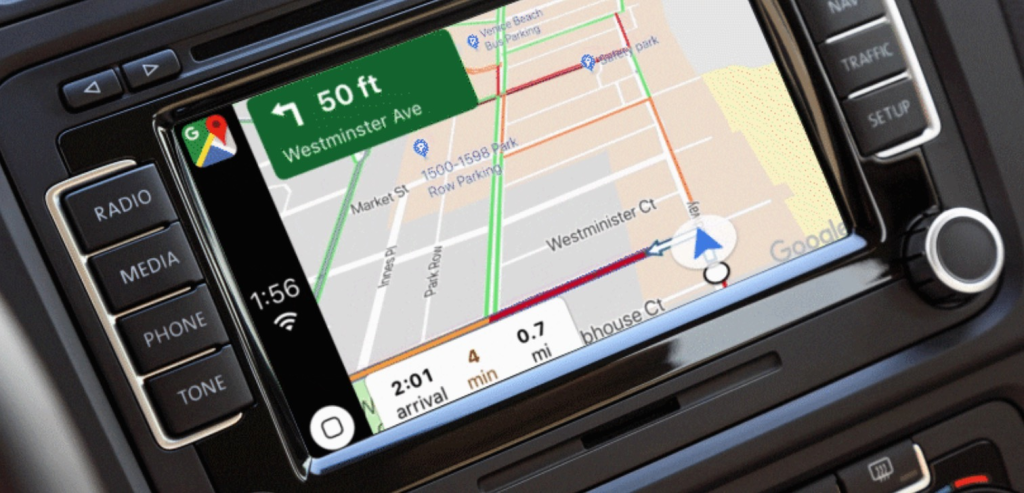
Google Maps has become a top choice for many users of Apple CarPlay. Its user-friendly interface, advanced features, and real-time information make it a preferred navigation tool in vehicles. We are excited to explore the various aspects of using Google Maps with Apple CarPlay and how it enhances the driving experience.
In addition to Google Maps, we can customize our CarPlay experience by integrating different apps through various software and hardware options. These solutions provide flexibility and expand the functionality of our CarPlay systems, making them even more convenient and enjoyable to use while on the road.
CarPlay Google Maps
Requirements for Using Google Maps with Apple CarPlay
To use Google Maps with Apple CarPlay, we need to ensure a few essential items are in place:
- iPhone: Our device must be an iPhone compatible with CarPlay.
- Car Compatibility: We should have a vehicle that supports Apple CarPlay.
- App Installation: It is important to have the Google Maps app downloaded and installed on our iPhone.
By meeting these requirements, we can enjoy seamless navigation on the road.
How to Add Google Maps on Apple CarPlay
To use Google Maps on Apple CarPlay, we first need to ensure it’s installed on our iPhone. Here’s how to set it up:
- Download or Update: If we don’t have Google Maps, we should download it from the App Store. If it’s already installed, we must update it to the latest version.
- Connect iPhone to CarPlay: We connect our iPhone to the vehicle using a compatible cable.
- Access Settings: On our iPhone, we navigate to Settings > General > CarPlay.
- Select Our Car: From the list, we choose our car to connect.
- Customize Display: We can tap on “Customize” to arrange the Google Maps icon on the CarPlay interface.
- Position the Icon: We place the Google Maps icon where we want it on the CarPlay screen.
Once completed, we will see the Google Maps icon ready for use in Apple CarPlay.
How to Use Google Maps on Apple CarPlay
When we first open Google Maps on Apple CarPlay, it automatically displays our current location. To set our destination and initiate turn-by-turn navigation, we follow these simple steps:
- Access the Menu:
- We tap the “E” icon located in the top left corner of the CarPlay screen.
- Add a Destination:
- An “Add Destination” button appears at the top of the screen. We tap on this button to proceed.
- Choose a Method to Add a Destination:
- We are presented with several options to enter our destination:
- Recent Searches: This option shows a list of places we’ve recently looked for, allowing us to quickly select one.
- Popular Locations: We can tap on categories like gas stations, restaurants, grocery stores, or coffee shops to navigate to the nearest location in those categories.
- Voice Search: By tapping the “Voice Search” button, we can verbally tell Google Maps where we want to go. After asking, “Where do you want to go?”, we say the name of our desired destination. A list of potential matches will appear on the screen for us to choose from.
- Keyboard Search: If we prefer, we can tap the keyboard icon in the upper-right corner. This allows us to type our destination using the on-screen keyboard.
- We are presented with several options to enter our destination:
After selecting our desired destination, Google Maps provides an overview of the route, including the estimated travel time. We can choose our preferred route and press ‘Start’ to begin navigation. As we move, the arrow indicating our current position will update in real-time.
Using Siri with Google Maps
Siri makes navigating with Google Maps in CarPlay quick and efficient. We can utilize Siri to enhance our experience just like we do with other voice commands.
Activating Siri
To start using Siri, we can choose from several methods:
- Press the voice command button on the steering wheel.
- Touch and hold the CarPlay Dashboard or Home button on the touchscreen.
- Say ‘Hey Siri’ to wake her up.
Giving Directions to Siri
Once Siri is activated, we can simply tell her our destination. Here are a few examples of how to ask for directions:
- “Get me directions to the nearest McDonald’s using Google Maps.”
- “Use Google Maps to go to work.” (Make sure we have saved our work address in Google Maps.)
- If we have saved a contact’s address, we can instruct Siri directly: “Navigate to John Smith using Google Maps.”
This allows us to travel without needing to touch our devices, making our journeys smoother and safer.
How to Access Satellite View in Google Maps on Apple CarPlay
To switch to the satellite view in Google Maps while using Apple CarPlay, we can follow these simple steps:
- Launch Google Maps on the CarPlay display.
- Tap the screen to display the hot bar. Next, select the Settings icon.
- Change the map view by clicking on the current view mode. This will allow us to switch from the default view to the satellite view.
Once we click Back, the satellite view will appear on our Google Maps screen, providing a different perspective for navigation.
Google Maps on Apple CarPlay – Challenges and Solutions
Experiencing issues with Google Maps on Apple CarPlay can be frustrating. Here are some common problems we may face and straightforward methods to resolve them.
Lagging Issues
When Google Maps lags on a wide screen in our vehicle, especially in KIA and Hyundai models, we can try splitting the screen. If this doesn’t solve the problem, we should clear the app’s cache or reinstall Google Maps. Keeping the app updated is crucial for smooth performance.
Google Maps Not Working
If we find that Google Maps isn’t functioning in CarPlay, we can follow these troubleshooting steps:
- Force close the app on our iPhone and then reopen it.
- Restart the iPhone to refresh its system.
- Forget and reconnect our car in the CarPlay settings.
- Check for updates for both iOS and the Google Maps app.
- Ensure that our car’s firmware is up to date.
- Test other navigation apps to see if they work.
Blank Screen Issue
A blank screen while using Google Maps can also disrupt our drive. Here are steps we can take to fix this:
- Restart our car to reset the system.
- Close Google Maps on the iPhone and try reopening it.
- Clear the application data by going to Settings > About, terms & privacy > Clear application data in Google Maps.
- Update Google Maps via the App Store by searching for the app and selecting ‘Update.’
- Disconnect the car from CarPlay by navigating to Settings > General > CarPlay, selecting our car, and tapping “Forget this car.”
- Always enable location services for Google Maps. To do this, go to Settings > Google Maps > Location and select ‘Always’ to allow background access.
By taking these steps, we can enhance our experience with Google Maps on Apple CarPlay.
Install Any App on Apple CarPlay Using WheelPal
We can add almost any app to Apple CarPlay with the WheelPal app, perfect for those wanting more than the standard selections. WheelPal is designed for jailbroken iPhones starting from the iPhone 6s. To see if WheelPal fits our needs and for compatibility details, we can visit CarPlay Hacks and download the app from there.
Need Help Deciding?
If we aren’t sure where to begin with the available options, we recommend exploring CarPlay Hacks. This site has solutions for both jailbroken and non-jailbroken devices, making it easier for us to find the right choice for our iPhone.
Adding Apps to Apple CarPlay with Wireless CarPlay Adapters
For those of us who prefer not to jailbreak our iPhones, wireless CarPlay adapters offer a fantastic solution to add any app to Apple CarPlay. These devices make it easy to access additional features and content right from our car’s interface.
Here are some popular wireless CarPlay adapters we can consider:
1. Carlinkit Wireless CarPlay Adapter

Carlinkit is known for its reliable wireless CarPlay adapters. This device enables us to stream DRM content such as Netflix, YouTube, and TikTok directly through Apple CarPlay. If we enjoy video content while on the road, Carlinkit is a great pick.
Features:
- Supports video streaming from YouTube, Netflix, and TikTok.
- Compatible with vehicles that have built-in CarPlay.
- Simple connection process after the initial setup.
- Works with iPhone 6s and newer models.
- Compatible with iOS 10 to iOS 18, including all subversions.

Another excellent option is the MMB CarPlay adapter, which also allows us to use any app on Apple CarPlay, including our favorite video streaming platforms. It provides easy connectivity and is designed for user-friendliness.
Features:
- Enables access to video content like YouTube, Netflix, and TikTok.
- Supports iPhones from iPhone 6s to the iPhone 16 series.
- User-friendly design for easy handling.
- Wi-Fi connectivity for seamless connection with Apple CarPlay.
3. Carlinkit Tbox UHD Android 13 CarPlay AI Box with HD Output

The Carlinkit TBox is another top choice among wireless CarPlay adapters. Like its counterparts, it supports streaming DRM content, making it ideal for those looking to enjoy videos while driving.
Features:
- Supports video streaming for apps like YouTube, Netflix, and TikTok.
- Compatible with vehicles that include built-in CarPlay.
- User-friendly with a straightforward connection after setup.
- Works with iPhone 6s and newer versions.
- Compatible with iOS 10 to iOS 18, including subversions.
For navigation needs, we might explore Sygic and Waze apps, both of which work well with Apple CarPlay. Keep an eye out for more updates about Apple CarPlay and Android Auto as we continue to enhance our in-car experience.
FAQs on Google Maps on CarPlay
How do we get started with Google Maps on Apple CarPlay?
To use Google Maps on CarPlay, we first need to download the app from the Play Store. Next, we go to Settings > General > CarPlay on our iPhone and connect it to the vehicle. Once connected, we’ll find the Google Maps icon displayed on the CarPlay screen.
Is Google Maps supported on Apple CarPlay?
Yes, we can use Google Maps with Apple CarPlay. It offers an alternative to the default Apple Maps, allowing us to navigate using our preferred app.
How do we switch to Satellite view in Google Maps on CarPlay?
While the Apple Maps settings don’t provide a satellite view option, we can easily access this feature in Google Maps. Here’s how:
- Open Google Maps on CarPlay.
- Tap the screen to display the hot bar, then select the Settings icon.
- Choose the map view option to switch from the default view to satellite view.
- Click Back, and we will see the satellite view activated.
What should we do if Google Maps isn’t functioning on CarPlay?
If we encounter issues, we can try the following steps:
- Verify our car is compatible with CarPlay.
- Ensure our phone is properly connected to CarPlay.
- Check for updates to Google Maps or our iPhone’s iOS.
- Clear the cache of the Google Maps app.
Can we set Google Maps as the default navigation app?
Unfortunately, we cannot set Google Maps as the default navigation app on CarPlay, as Apple Maps is designated as the default option.
Is Google Street View available on Google Maps for CarPlay?
Currently, the Street View feature is not accessible on Google Maps while using CarPlay.
Frequently Asked Questions
How do we set up Google Maps for Apple CarPlay?
To start using Google Maps with Apple CarPlay, we first need to ensure that our iPhone is connected to the vehicle. Once connected, open the Google Maps app on our iPhone. The app should automatically appear on the CarPlay screen. We can then search for destinations and get directions directly from the CarPlay interface.
What do we need to do to use Waze with CarPlay in our vehicle?
To use Waze with CarPlay, we must connect our iPhone to the car system. After that, we should launch the Waze app on our iPhone. The app will then become available on the CarPlay screen. From there, we can enter our destination, view real-time traffic updates, and receive navigation instructions, all through CarPlay.
What could be the reason our Apple CarPlay navigation instructions are not functioning?
If our navigation instructions are not working in Apple CarPlay, it might be due to a few different issues. Common reasons include not having the location services turned on, a poor internet connection, or a software glitch. We can try disconnecting and reconnecting our iPhone or ensuring that our app is updated to the latest version to resolve these issues.
How do we fix Apple Maps if it is not working properly on CarPlay?
When Apple Maps isn’t working as expected on CarPlay, we can try a few troubleshooting steps. First, we should check our iPhone’s connection to the car. If it’s connected properly, we can restart both the iPhone and the car’s infotainment system. If the issue persists, checking for updates for both iOS and the app can also help.
What do we need to access satellite view in Apple Maps while using CarPlay?
To view satellite imagery in Apple Maps through CarPlay, we need to ensure that we have selected the satellite option within the app. This can usually be done by choosing the map type option on our iPhone before starting the navigation. Once selected, the satellite view should display on the CarPlay screen automatically.
Can we use Google Maps with CarPlay on an Android device?
Google Maps is designed for use with Apple CarPlay on iPhones only. It is not available for Android devices in the CarPlay interface. However, Android devices can utilize Android Auto, which serves a similar purpose and provides access to Google Maps directly on compatible car screens.