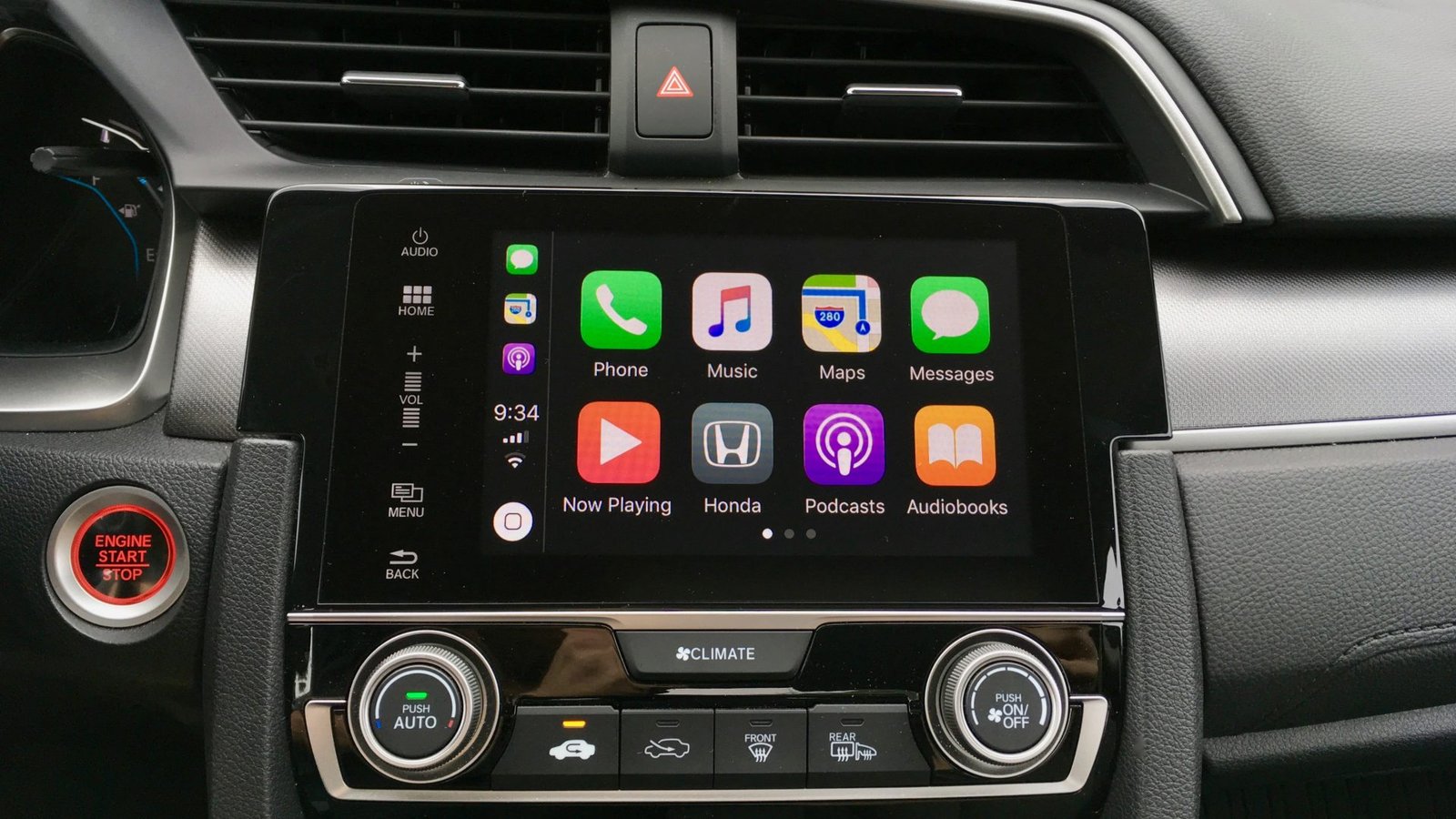
CarPlay offers a convenient way to use our smartphones while driving, enabling safer travel experiences. It allows us to access maps and other apps directly through our car’s interface. However, it is crucial to be aware of potential CarPlay problems before embarking on long trips. Issues like losing connectivity or having our navigation tools become unresponsive can lead to frustrating situations, especially if they happen in unfamiliar places.
By understanding these common concerns, we can better prepare ourselves to avoid unexpected complications. Whether we are currently facing a problem or wish to be proactive before our next drive, it is important to stay informed. In the following discussion, we will explore the various issues related to CarPlay and share effective solutions to ensure our journeys remain smooth and worry-free.
CarPlay Connectivity Issues
Experiencing problems with CarPlay can be frustrating, especially when it should be working smoothly. We understand that connectivity problems can arise whether you’re using a USB connection or going wireless. Let’s look at how we can resolve these issues effectively.
Ways to Resolve Issues
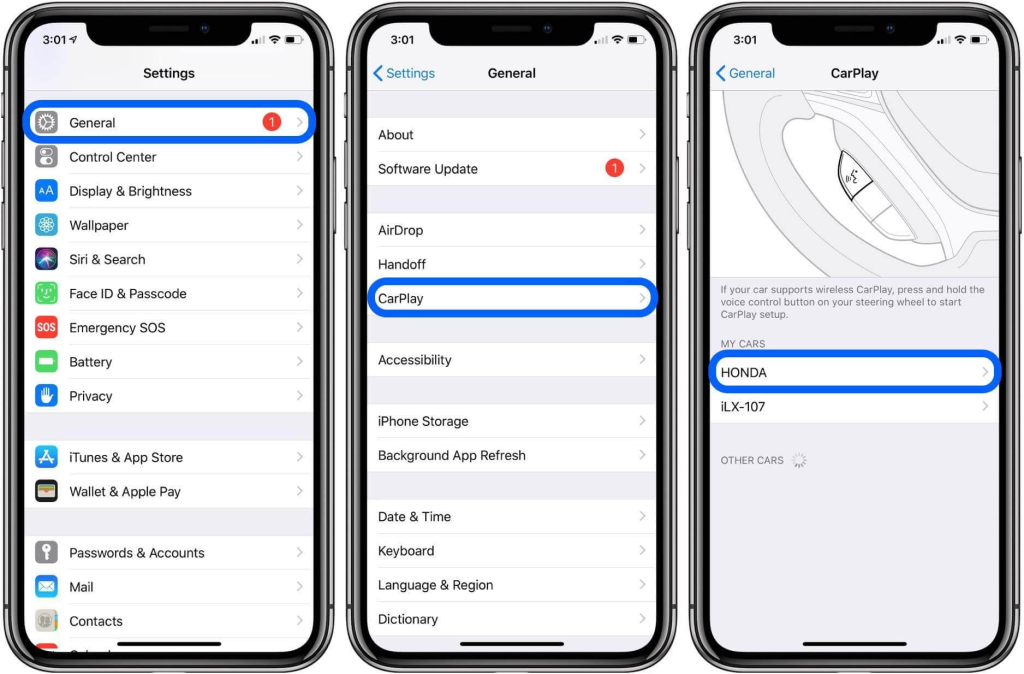
- For Wired Connections: We should first ensure that the USB cable is securely connected and compatible with both the car and iPhone.
- For Wireless Connections: It’s essential to turn on Bluetooth and Wi-Fi through our iPhone settings. We can do this by navigating to Settings > General > CarPlay.
If we don’t see our vehicle listed, we may need to press and hold the voice control button on the steering wheel to set it up and pair the phone.
By following these steps, we can help troubleshoot and resolve CarPlay connectivity issues.
Challenges with Siri
Siri serves as a valuable tool to help us keep our attention on the road while driving. This intelligent virtual assistant requires a dependable internet connection to function properly. Without it, some features may not be available and overall performance could be impacted.
How to Resolve Issues
If we notice that Siri is not responding as intended, we can take the following steps:
- Check Mobile Data: Ensure our mobile data connection is strong enough for Siri to operate effectively.
- Verify Siri Settings: Make sure that Siri is enabled in our device settings.
We should keep in mind that mobile signal strength can fluctuate, especially during long trips.
Wireless CarPlay Difficulties
We enjoy the convenience of wireless CarPlay, but it can sometimes lead to issues compared to the wired option. While wireless allows for easier access to features, wired connections typically provide faster data transfer. Interference can also occur with wireless connections, which may affect performance.
Solutions for Issues
To improve our wireless CarPlay experience, we can try the following steps:
- Restart the infotainment system: This can help reset connections and clear up minor glitches.
- Switch to a lightning cable: If we face delays or slow responses, using a wired connection can show noticeable improvements in speed and reliability.
CarPlay Issues and Delays
When we connect our iPhones to CarPlay, we may notice delays and performance issues. This problem is common among users, causing symptoms like choppy audio and lower frame rates while navigating or using apps.
Solutions to Consider
- Update Software: We should regularly check for updates on our iPhones to ensure we have the latest features and fixes.
- Compatibility Check: It is important for us to confirm that our vehicles support the most recent iOS versions.
- Reconnect CarPlay: We can disconnect our device from CarPlay, delete the vehicle from our phone settings, and then reconnect it.
- Try Another Cable: Using a different charging cable can help. It’s best to use a genuine Apple cable for optimal performance.
Solutions for CarPlay Problems
When we encounter issues with CarPlay, it’s important to take specific steps to resolve them. Here’s a guide to help us troubleshoot effectively.
- Confirm CarPlay Compatibility
We need to ensure that our vehicle supports CarPlay. If there’s any doubt, we can use a compatibility checker. - Update Our iPhone
Keeping our iPhone updated is crucial. We should check for the latest software updates to prevent issues. - Check Connections
- For a wired connection, we can try using a different USB cable or port.
- If we are using a wireless connection, it’s essential to verify that both Wi-Fi and Bluetooth are turned on in our settings.
- Enable CarPlay
If CarPlay isn’t functioning, we can locate the CarPlay icon on our infotainment display and restart both the iPhone and the car. Also, we should ensure that Siri is activated. - Review Restrictions
To verify that CarPlay isn’t restricted, we navigate to Settings > Screen Time > Content & Privacy Restrictions. Here, we can tap on allowed apps to confirm that CarPlay is permitted. - Reconfigure CarPlay
We can set up CarPlay again by visiting Settings > General > CarPlay, selecting our car, and then choosing “Forget This Car.” - Update Firmware
Finally, we must check that our CarPlay stereo is using the latest firmware for optimal performance.
For Error-free CarPlay
What is NGXPlay?

NGXPlay is a modification for Apple CarPlay that enables us to display any app from our iPhone directly on the CarPlay interface. This means we aren’t limited to just the select apps that CarPlay officially supports. Instead, we can enjoy a wider range of functionalities by using our favorite applications right on the CarPlay screen.
To install NGXPlay, we first need to use WheelPal, a reliable tool for jailbreaking our iPhones. Once our device is jailbroken, we can safely download and install NGXPlay. This process allows us to take full advantage of the apps available on our devices, making our driving experience more enjoyable and efficient.
By unlocking CarPlay’s potential through NGXPlay, we can better customize our vehicle’s infotainment system to meet our needs, ensuring we have access to the tools and apps that work best for us while on the road.
iOS 16 CarPlay Problems
Recently, iOS 16 and iOS 17 have been launched, yet some users continue to experience issues. Problems such as black screens, dropped connections, and app limitations persist, despite the new updates.
To address these concerns, we can try several troubleshooting steps:
- Restart our iPhone.
- Confirm that CarPlay is activated on our device.
- Verify that Bluetooth is connected properly.
- Inspect the USB cable for damage.
- Ensure Siri is enabled when the phone is locked.
- Check if our vehicle is compatible with CarPlay.
- Make sure that CarPlay restrictions are not in place.
Implementing these steps may help resolve connectivity issues.
CarPlay Problems with iOS 15
We have noticed that many users face challenges with Apple CarPlay after updating to iOS 15. Common issues include difficulties in rearranging apps, frequent disconnections, and problems with music playback. These glitches can hinder the overall driving experience.
Problems with CarPlay in iOS 14
We have encountered some common issues with CarPlay in iOS 14. Users reported that CarPlay sometimes does not start at all. Additionally, the app menu might only show one app per screen, forcing users to swipe between screens to find what they need. Fortunately, these problems have been resolved with the subsequent public release of iOS updates.
Issues with CarPlay on iOS 13
We have encountered several challenges with CarPlay for users on iOS 13 to 13.5. Some of the most common problems include:
- Difficulty during installation
- Wi-Fi connectivity troubles
- Battery performance declines
- CarPlay failing to function
- Inability to connect to CarPlay
- Sudden disconnections after initial connection
- Freezing issues leading to a black screen
iOS 12 CarPlay Problems
We have seen reports from iOS 12 users experiencing disconnection issues with CarPlay while using the reverse camera feature. This problem has been acknowledged by Apple, and we anticipate it will be addressed in future updates. Confirmed users include those with iPhone X, iPhone 8, iPhone 6, and iPhone SE devices.
Issues with CarPlay in iOS 11
In our experience with iOS 11.3 and iOS 11.4, several issues have been reported by users. Many encountered problems like skipping songs and random disconnections. These glitches first appeared in iOS 11.3 and continued into iOS 11.4 before a fix was introduced in iOS 11.4.1.
The most frustrating problem was distorted audio during phone calls via CarPlay. Although users could hear the other person clearly, their own voice often sounded unclear or garbled. This voice distortion persisted through iOS 11.3.1 and was not resolved until the iOS 11.4 update.
Affected devices included popular models like the iPhone X, iPhone 7, and iPhone SE. Users across these models shared their experiences, highlighting the need for continued improvements in CarPlay connectivity and performance.
Frequently Asked Questions
Why is there a delay in audio while using Wireless CarPlay?
We may experience an audio delay with Wireless CarPlay due to several factors. Common reasons include poor Bluetooth or Wi-Fi connections, interference from other devices, or outdated software on either our iPhone or car system. Ensuring both devices are updated and within a good range of each other can help reduce this lag.
How can we fix the freezing problem on CarPlay with iOS 17?
If we encounter freezing on CarPlay with iOS 17, several steps can be helpful. We can start by restarting our iPhone and the car’s infotainment system. Checking for software updates on both devices can also resolve glitches. If the issue persists, resetting the network settings on our iPhone might restore normal functionality.
What leads to an unresponsive CarPlay screen?
An unresponsive CarPlay screen can occur for various reasons, including connectivity issues, software bugs, or hardware malfunctions. We should check our connection methods, like Bluetooth and USB cables, and confirm that our car’s system is compatible with our iPhone.
How do we address connectivity problems with Wireless CarPlay?
To resolve connectivity issues with Wireless CarPlay, we can take a few steps:
- Ensure that Bluetooth and Wi-Fi are enabled on our iPhone.
- Remove any existing pairings of our device and car, then reconnect them.
- Restart both our iPhone and the car’s infotainment system, which often helps clear temporary issues.
What steps can we take to fix audio delays in certain vehicle models using Apple CarPlay?
If specific car models demonstrate audio delays with Apple CarPlay, we can try decreasing potential interference. This includes moving away from objects that might disrupt the signal and ensuring our car’s software is current. Consulting the vehicle’s manual for compatibility notes may also provide insights.
Are there ways to minimize lag when using a Wireless CarPlay adapter?
To lessen lag when utilizing a Wireless CarPlay adapter, we can ensure the adapter’s firmware is up to date. Placing our iPhone closer to the adapter can improve connectivity. Additionally, minimizing the number of background applications running on our device can enhance performance.