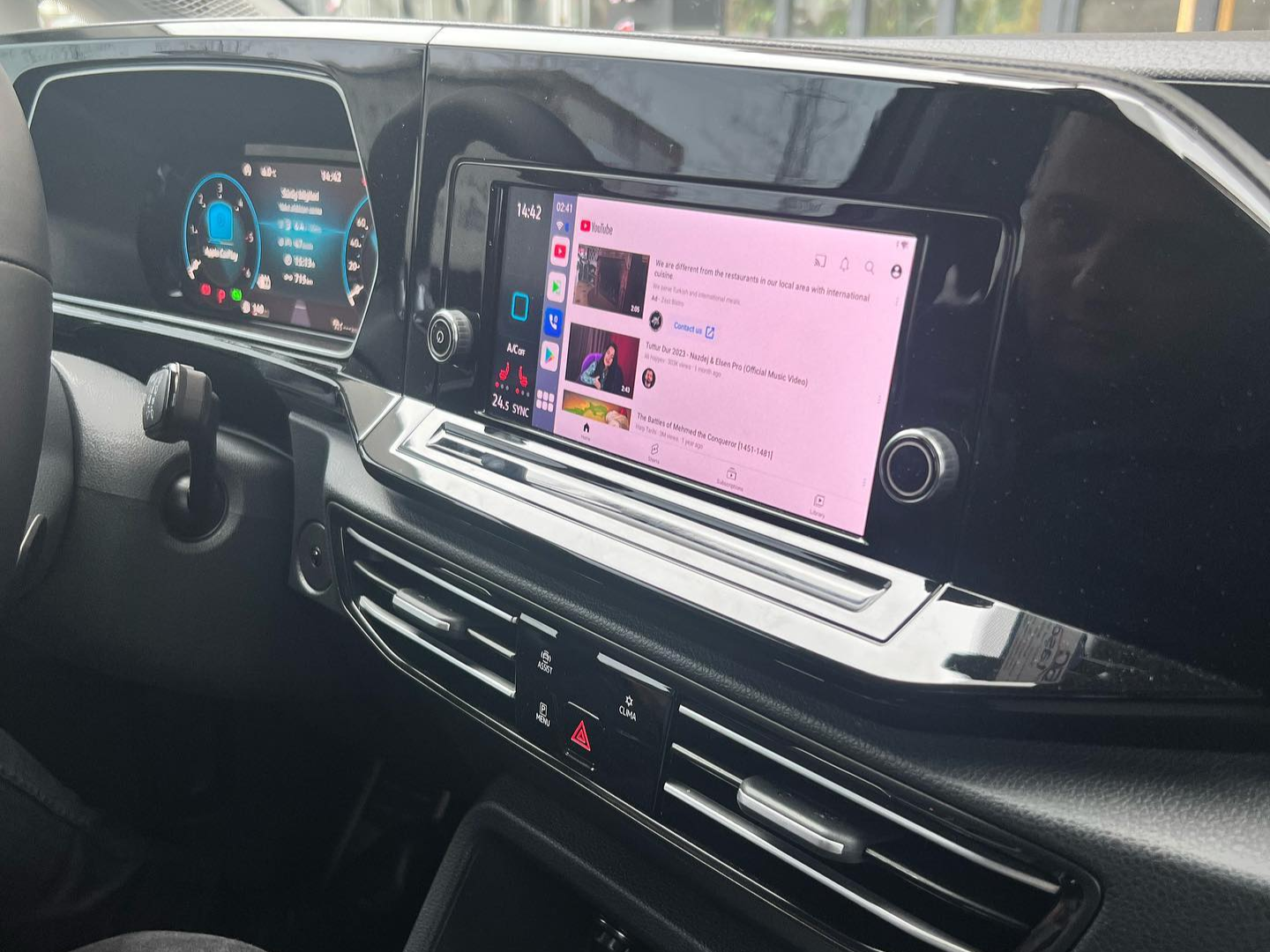
Watching Hulu on Apple CarPlay can be a great way to stay entertained during long car rides or commutes. However, the process of accessing Hulu on CarPlay can be a bit tricky, as it is not officially supported by Apple. Fortunately, there are alternative ways to get Hulu on Apple CarPlay that do not require jailbreaking your phone or violating any terms of service.
Understanding the limitations of Apple CarPlay is essential when exploring alternative ways to access Hulu. Apple CarPlay is designed to provide a simplified and safe way to use your iPhone while driving, and it only supports a limited number of apps. While Apple has opened up CarPlay to third-party developers, not all apps are compatible with the platform, and some apps may require additional steps to work properly.
One alternative way to access Hulu on Apple CarPlay is by using Carlinkit’s Tbox, a device that allows you to connect your iPhone to your car’s infotainment system wirelessly. With Tbox, you can access a range of apps on your car’s screen, including Hulu. In the following sections, we will provide a step-by-step guide to accessing Hulu via Carlinkit’s Tbox.
Understanding Apple CarPlay Limitations
Apple CarPlay is a technology that allows users to connect their iPhone to their car’s dashboard display and access various apps, including music, messaging, and navigation. While CarPlay offers a seamless integration of the iPhone with the car’s infotainment system, there are certain limitations to the technology.
Video Playback Limitations
One of the main limitations of Apple CarPlay is the inability to play videos while driving. This is a safety measure that Apple has put in place to prevent drivers from getting distracted while on the road. As a result, users cannot watch Hulu or any other video streaming service on CarPlay while driving.
Implications For Users
The inability to play videos on CarPlay can be a significant limitation for users who rely on the technology for entertainment during long drives. While CarPlay offers access to various music streaming services, users who prefer to watch videos or movies while on the road will need to rely on other means to do so.
Furthermore, CarPlay only supports a limited number of apps, and not all apps are optimized for use on the car’s dashboard display. As a result, some apps may not work as well on CarPlay as they do on the iPhone.
Despite these limitations, CarPlay remains a popular technology among iPhone users who want to stay connected while on the road. It offers a safe and convenient way to access various apps without having to take their eyes off the road.
In conclusion, while Apple CarPlay has certain limitations, it remains a reliable and convenient technology for users who want to stay connected while driving. By understanding the limitations of CarPlay, users can make the most of the technology and enjoy a safe and seamless driving experience.
Introducing Carlinkit’s Tbox
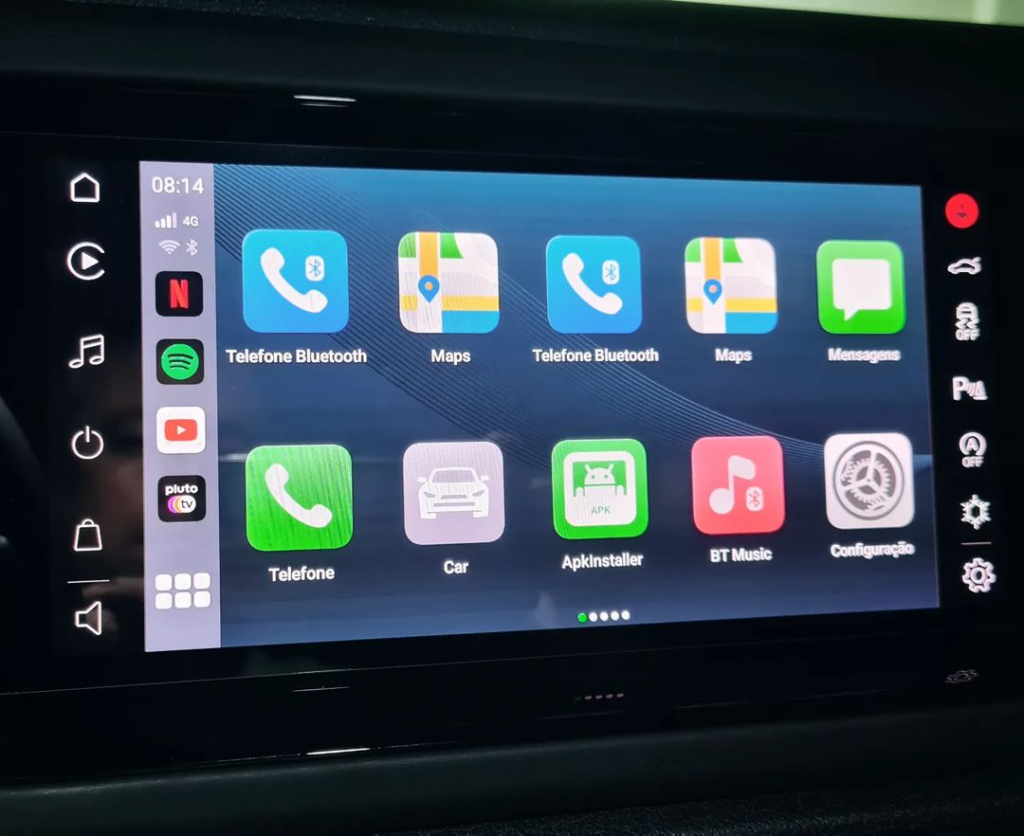
Carlinkit’s Tbox is a wireless adapter that provides seamless integration of Apple CarPlay and Android Auto with your vehicle’s infotainment system. The Tbox is a small device that connects to your car’s USB port and enables you to use your iPhone or Android phone without the need for cables.
Overview Of Carlinkit’s Tbox
Carlinkit’s Tbox is a high-quality wireless adapter that provides a reliable and stable connection between your smartphone and your car’s infotainment system. It is easy to install and use, and it is compatible with a wide range of vehicle models. The Tbox supports a variety of popular apps such as Apple Music, Spotify, YouTube Music, Google Maps, Waze, Audible, Overcast, Apple Maps, Tidal, Pandora, Amazon Music, NPR One, WhatsApp, and many more.
Compatibility With Vehicle Models
Carlinkit’s Tbox is compatible with a wide range of vehicle models, including Audi, BMW, Mercedes-Benz, Porsche, Volkswagen, and many more. The Tbox is designed to work with the existing infotainment system of your car, providing a seamless and integrated experience.
Connecting To Apple CarPlay
Connecting your iPhone to the Tbox is easy and straightforward. Simply plug the Tbox into your car’s USB port, and then connect your iPhone to the Tbox via Wi-Fi. Once connected, you can use Apple CarPlay to access your favorite apps, make phone calls, send text messages, and more.
Benefits Of Using Carlinkit’s Tbox
There are many benefits to using Carlinkit’s Tbox. First and foremost, it provides a wireless connection between your smartphone and your car’s infotainment system, eliminating the need for cables. This makes it much more convenient to use your phone while driving, as you can keep it in your pocket or purse.
Additionally, the Tbox supports a wide range of popular apps, including music streaming services, navigation apps, and communication apps. You can customize the dashboard to display your favorite apps and radio stations, making it easy to access the content you love.
Overall, Carlinkit’s Tbox is a reliable and high-quality wireless adapter that provides seamless integration of Apple CarPlay and Android Auto with your vehicle’s infotainment system. Whether you are looking to stream music, navigate to your destination, or stay connected with friends and family, the Tbox has you covered.
Step-By-Step Guide To Accessing Hulu Via Carlinkit’s Tbox
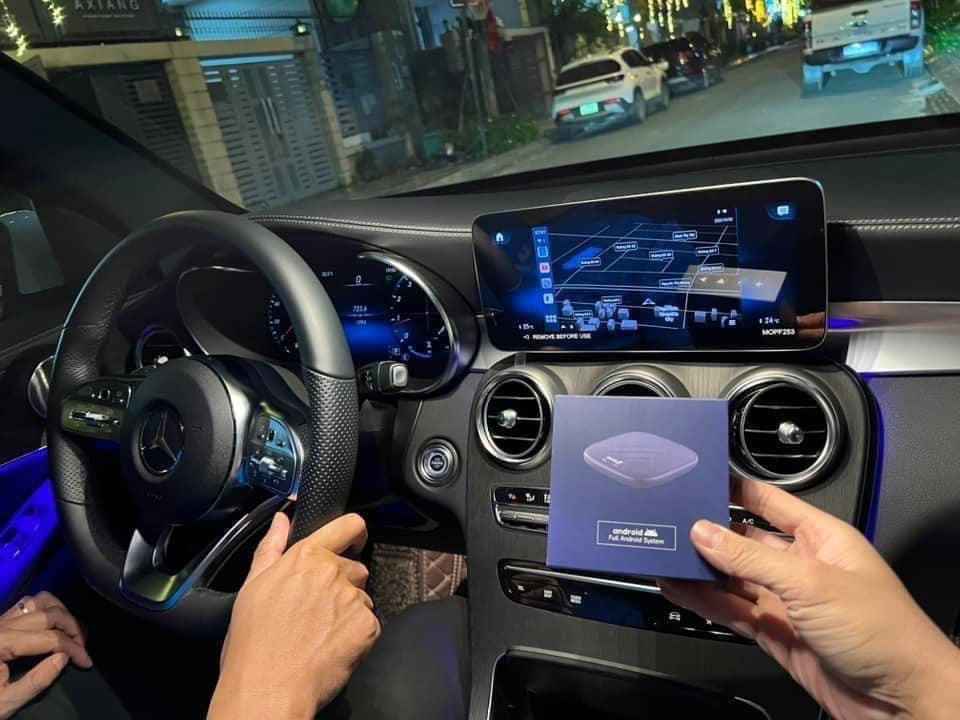
Carlinkit’s Tbox is a wireless smart AI box that can be used to stream video content on Apple CarPlay. Hulu is one of the popular video streaming apps that can be accessed on CarPlay using the Tbox. In this section, we will provide a step-by-step guide to accessing Hulu via Carlinkit’s Tbox.
Installation
The first step is to install the Tbox on your car. The installation process is simple and straightforward. Follow the steps below to install the Tbox on your car:
- Plug the Tbox into the USB port of your car’s head unit.
- Connect your iPhone to the Tbox’s Wi-Fi network.
- Download and install the WheelPal app from the App Store.
- Open the WheelPal app and sign in using your Apple ID.
- Follow the on-screen instructions to activate the Tbox.
Configuration
Once the Tbox is installed, you need to configure it to access Hulu. Follow the steps below to configure the Tbox:
- Open the WheelPal app on your iPhone.
- Tap on the “Install” button next to the Hulu app.
- Wait for the app to download and install.
- Open the Hulu app and sign in using your Hulu credentials.
- Start streaming your favorite shows and movies on Hulu.
Troubleshooting Common Issues
If you encounter any issues while accessing Hulu via Carlinkit’s Tbox, try the following troubleshooting steps:
- Make sure that your iPhone is connected to the Tbox’s Wi-Fi network.
- Check if the Tbox is properly installed and activated.
- Restart the WheelPal app and try again.
- Restart your iPhone and try again.
Optimizing The Streaming Experience
To optimize the streaming experience on Hulu, follow the tips below:
- Make sure that your car’s head unit is compatible with CarPlay.
- Use a high-speed internet connection to avoid buffering.
- Close other apps running on your iPhone to free up memory.
- Adjust the video quality settings to match your internet speed.
In conclusion, Carlinkit’s Tbox provides an alternative way to access Hulu on Apple CarPlay without jailbreaking your iPhone or using the Carplayhacks app. By following the step-by-step guide provided in this section, you can easily access Hulu on CarPlay using the Tbox.
Conclusion
In conclusion, getting Hulu on Apple CarPlay is not as straightforward as one would expect. While there are a few third-party apps that allow users to watch Hulu on CarPlay, they come with their own set of limitations and potential risks. Additionally, Apple has strict guidelines for app developers, which means that there are no official Hulu apps available for CarPlay.
However, there are some alternative ways to get Hulu on Apple CarPlay that users can consider. For instance, users can use screen mirroring to cast Hulu from their iPhone to a CarPlay-compatible display. Another option is to use a media player that supports CarPlay, such as Plex or Infuse, to stream Hulu content from a remote server.
It is important to note that these alternative methods may not offer the same level of convenience or user experience as an official Hulu app for CarPlay. Users may also need to have a premium Hulu subscription to access certain content. Nevertheless, for those who are willing to experiment with different options, there are ways to enjoy Hulu on Apple CarPlay.