
Wireless CarPlay Not Working? Common Problems and Fixes
Wireless CarPlay is one of the most convenient ways to connect your iPhone to your car without cables. It allows you to stream music, use navigation apps, make calls, and access many apps directly on your car display. However, wireless connectivity can sometimes be unstable, resulting in dropped connections, lag, or app crashes. In this article, we’ll explore the common problems with wireless CarPlay, detailed solutions, and the best adapters to ensure a seamless driving experience.
How Wireless CarPlay Works
Wireless CarPlay uses a combination of Bluetooth and Wi-Fi to create a direct connection between your iPhone and your car’s infotainment system or an aftermarket adapter. When functioning properly, it allows full CarPlay functionality without plugging in your iPhone. It requires a compatible iPhone (iPhone 5 and above) with iOS 9 or newer, and either a car with built-in wireless CarPlay or an adapter such as Carlinkit.
Common Problems With Wireless CarPlay
- Connectivity Drops: The connection may drop intermittently or fail to pair at all.
- Audio or Video Issues: Music or videos may not play, audio may be distorted, or some apps may not display.
- App Compatibility: Certain apps may crash or not show up on CarPlay.
- Lag or Slow Response: Delayed screen response, navigation, or voice commands.
- Adapter-Specific Problems: Some adapters may not fully support all car models or software versions.
Detailed Solutions
1. Update Your iPhone and Adapter Firmware
Always ensure your iPhone is running the latest iOS version. Apple frequently releases updates that fix wireless CarPlay bugs. Similarly, check for firmware updates for your wireless CarPlay adapter, like Carlinkit 4.0 or 5.0. Firmware updates often improve pairing speed, connection stability, and compatibility with new apps.
2. Reset Connections
If wireless CarPlay fails to connect, forget the CarPlay device in your iPhone settings, and re-pair it. On the adapter, power-cycle the device to refresh its connection. Reset Bluetooth and Wi-Fi networks on your iPhone to eliminate any conflicting signals.
3. Check Compatibility
Not all cars support wireless CarPlay natively. If your vehicle doesn’t, using a high-quality adapter is necessary. Products like Carlinkit 4.0 or Carlinkit 5.0 are designed to convert wired CarPlay to wireless and ensure wide car compatibility.
4. Reboot Devices
Restarting your iPhone, car infotainment system, and wireless adapter can resolve temporary glitches. This simple step often fixes connection drops, unresponsive apps, or lag.
5. Reduce Interference
Wireless CarPlay uses Wi-Fi and Bluetooth simultaneously. Keep your iPhone close to the adapter and avoid multiple Bluetooth connections at the same time. Remove devices like smartwatches or other phones that may interfere with the connection.
6. Verify Wired CarPlay First
Before troubleshooting wireless CarPlay, ensure wired CarPlay works properly. If wired CarPlay has issues, wireless CarPlay is unlikely to function correctly. Troubleshoot wiring or compatibility issues first.
Recommended Wireless CarPlay Adapters

Carlinkit 4.0 Wireless CarPlay Adapter
Convert your wired CarPlay and Android Auto to wireless. Plug-and-play design ensures minimal setup time.

Carlinkit 5.0 Wireless CarPlay Adapter
Upgraded version with faster pairing, enhanced stability, and full support for the latest iOS and Android devices.
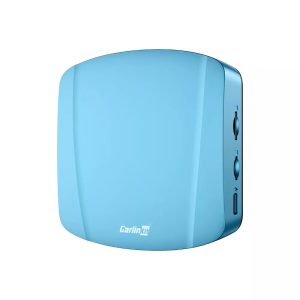
Carlinkit Tbox Ultra Android 15.0 System
This adapter combines wireless CarPlay and full Android OS functionality, giving you access to navigation, streaming, and apps directly on your car display without cables.
Additional Tips for Stable Wireless CarPlay
- Always keep your iPhone and adapter firmware up-to-date.
- Use original Apple cables if you occasionally switch between wired and wireless CarPlay.
- Limit the number of Bluetooth connections in your car.
- Regularly restart your car system to maintain stable performance.
- If problems persist, try using a different wireless CarPlay adapter or consult customer support for device-specific solutions.
Conclusion
Wireless CarPlay makes driving safer and more convenient, but connection issues can hinder the experience. Understanding the causes and solutions, and investing in high-quality adapters like Carlinkit 4.0, 5.0, or Tbox Ultra ensures reliable performance. By following the detailed fixes outlined in this guide, you can enjoy smooth, lag-free wireless CarPlay for navigation, music, calls, and apps every time you drive.