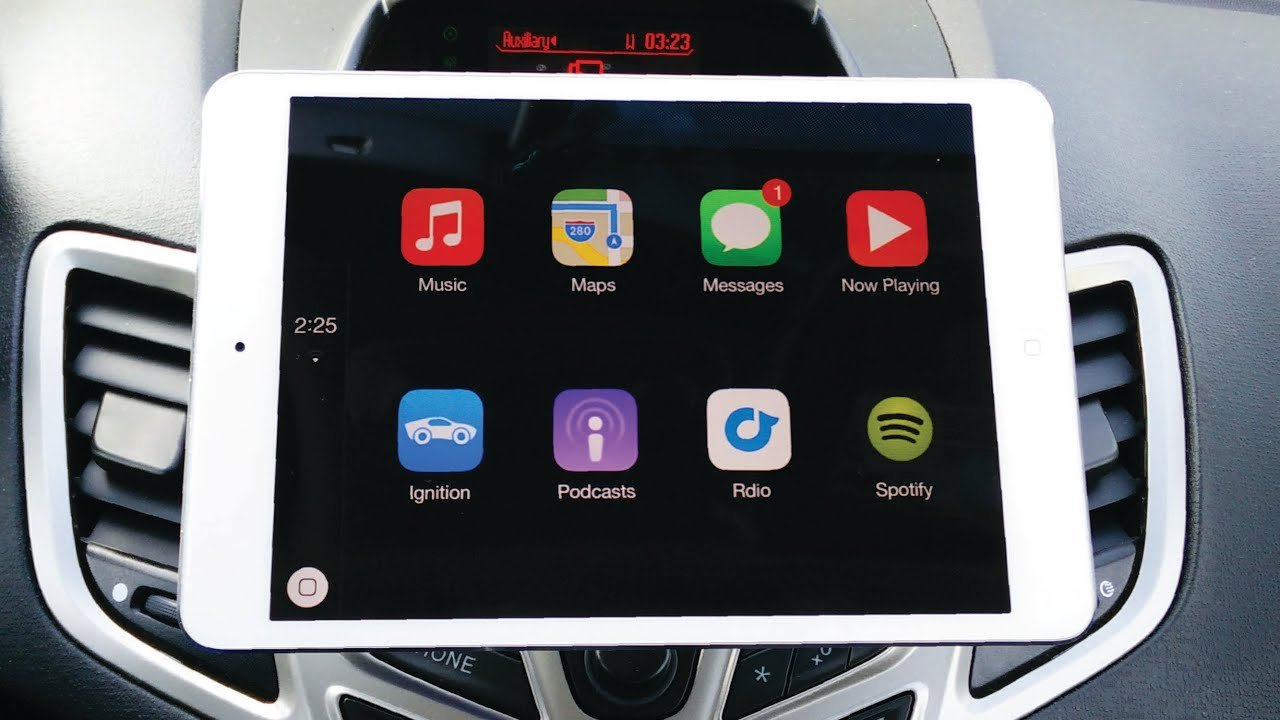

CarPlay for iPad is now a reality, and we can confidently say that it’s accessible to everyone. All iPad devices can utilize CarPlay, but how we go about using it varies based on the operating system of the car’s system. We have explored both jailbreak and non-jailbreak options for those who wish to connect their iPads to their vehicles seamlessly.
For users seeking to enable applications on iPad CarPlay, we have identified solutions that cater to both methods. Tools like WheelPal are available for those who have jailbroken their devices, while InCar offers an alternative for those who prefer to keep their iPad secure. These options provide safe and effective ways to enhance our driving experience with the benefits of Apple CarPlay.
Enable CarPlay on iPad with Jailbreak
Requirements to run CarPlay on iPad with a Jailbreak
To use CarPlay on an iPad through a jailbreak, we need a compatible device. Supported models include:
- iPad mini (6th generation)
- iPad (10th generation)
- iPad Air (4th and 5th generations)
- iPad Pro 11-inch (1st to 4th generations)
- iPad Pro 12.9-inch (3rd to 6th generations)
It is essential that our iPad runs on a version of iOS. Devices using iPadOS will not have the full CarPlay experience available. To confirm the current operating system, we can check by going to:
Settings → General → Software Update → Current OS version
If the iPad indicates it is on iPadOS, we cannot directly use CarPlay on our vehicle’s display. However, we can utilize the InCar app on an iPhone to simulate CarPlay in landscape mode.
For older iOS versions, specifically iOS 12 through iPadOS 10, we can enable CarPlay by using tools like the WheelPal app, which allows integration of various applications. This is a preferred solution for seamless access to our favorite apps directly on the iPad.
Using Ignition Jailbreak Tweak
Ignition provides a complete Apple CarPlay interface for our iPads. Formerly known as CarPlayactivator, this app is optimized to allow users to connect their iPads to a CarPlay system efficiently. To use Ignition, we must first ensure our iPad is jailbroken.
We can install Ignition through Cydia by following these steps:
- Find a suitable jailbreak tool compatible with our device’s iOS version and perform the jailbreak.
- Install Cydia on our jailbroken iPad.
- Open the Cydia app and search for “Ignition.”
- Select the Ignition app from the search results and install it.
- Once the installation is complete, tap the Ignition icon to launch CarPlay on our iPad.
With Ignition installed, we gain access to essential applications like Siri, Music, and Maps right from our iPad while driving. Switching back to the iPad’s main menu is as simple as tapping on the Ignition icon.
This method not only enriches our driving experience but also allows us to add third-party apps, enhancing the functionality of the CarPlay setup on our iPad. By following the stated procedures, we can transform our iPads into comprehensively equipped CarPlay displays.
Using InCar App for CarPlay without Jailbreak
CarPlay on iPads with InCar App
For those of us using iPads running iPadOS, it can be frustrating to find that we cannot access CarPlay directly. Fortunately, we have the option of using the InCar App, which allows us to simulate the CarPlay experience without the need to jailbreak our devices.
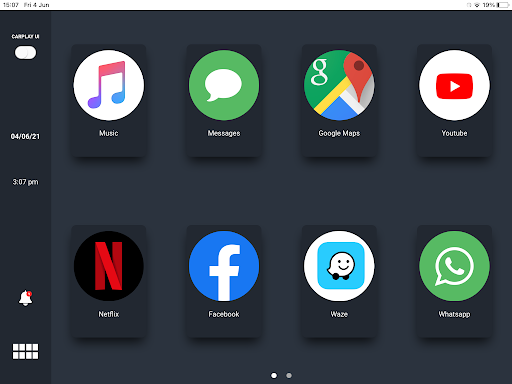
The InCar App provides a visual representation resembling the CarPlay interface. This enables us to access popular apps like YouTube, Netflix, and Facebook while driving, all within a safe and user-friendly simulator view. We can enjoy the benefits of CarPlay without the hassle of connecting our iPads to our car’s infotainment system.
Supported iPadOS Versions:
- iPadOS 13 to 13.7
- iPadOS 14 to 14.8.1
- iPadOS 15 to 15.7.1
- iPadOS 16 to 16.6
- iPadOS 17
By using the InCar App, we can make the most of our iPads while enjoying a CarPlay-like experience, opening up new opportunities to stay connected on the road. This method ensures we have access to our favorite apps, all while keeping our iPad’s software intact.
Frequently Asked Questions About iPad and CarPlay Functionality
Does the iPad work with CarPlay?
Currently, most recent iPads running on iPadOS cannot directly use CarPlay. However, we can utilize apps like InCar or Ignition to enable CarPlay functionality on these devices.
Why aren’t iPads compatible with CarPlay?
If we’ve attempted to connect our iPad to CarPlay and encountered a “This device is not supported” error, it’s likely due to compatibility issues. The predominant belief is that Apple designed CarPlay primarily for iPhones, as most users own these devices instead of iPads.
What are the steps to enable CarPlay on the iPad?
To get our iPad connected to CarPlay, we need to download and install the InCar app. This app allows us to transform the iPad into a CarPlay interface.
Can we access CarPlay on the iPad without jailbreaking?
Yes, we can use CarPlay on our iPad without jailbreaking it. Using the InCar app acts as a simulator for CarPlay, allowing us to enjoy the features without modifying the device.
By following these steps and tips, we can enhance our in-car experience with iPad technology.
Final Thoughts
We have options for using CarPlay with an iPad, whether it requires a jailbreak or not. Here’s a brief overview:
| Feature | Ignition (Jailbreak) | InCar (No Jailbreak) |
| Works with non-default apps | ✔ | ✔ |
| Supports video streaming apps | ✔ | ✔ |
| Landscape mode available | ✔ | ✔ |
| Security of iPad | Low | Low |
| Easy setup | A bit advanced | Simple |
If our iPad runs iPadOS, the InCar app is our best choice. This setup lets us access popular apps like YouTube, Netflix, and Facebook easily. We should confirm which operating system our iPad uses and select the most suitable option.
Safety is paramount, so let’s ensure we enjoy our CarPlay experience responsibly. Happy driving!
Frequently Asked Questions
How do we enable Apple CarPlay on our iPad Pro?
To activate Apple CarPlay on an iPad Pro, we need to ensure that both our device and car are compatible. We should check if our car model supports CarPlay. After confirming compatibility, we can use a USB cable or Bluetooth to connect our iPad to the car, and follow the prompts on the screen.
Can we use an iPad for navigation in our vehicle?
Yes, we can utilize an iPad for navigation while driving. Apps like Apple Maps or Google Maps can be installed on our iPad. By connecting to CarPlay, we can easily display navigation instructions on our car’s screen for safer driving.
Is it possible for us to use an older iPad as a CarPlay display?
We can use an older iPad for CarPlay if it meets the necessary software requirements. While specific features may vary, it can serve as a secondary display for apps compatible with CarPlay.
What steps do we need to follow to set up CarPlay on our iPad without jailbreaking?
Setting up CarPlay on our iPad without jailbreaking is straightforward. We start by connecting our iPad to the car using a USB cable. Next, we enable CarPlay in the car settings and our iPad settings, ensuring that both devices are correctly configured for use.
Are there any CarPlay shortcuts available for our iPad?
Yes, CarPlay offers various shortcuts that can enhance our experience. We can set up shortcuts for frequently used apps, navigation, and music control, making access easier while driving.
What are the best ways for us to mount an iPad in our car for CarPlay use?
To mount an iPad in our car, we have several options. We can choose a dashboard mount, a document holder, or a magnetic mount. Each type offers a secure fit while allowing easy visibility and access to the iPad screen.